
Class 12

Assignment 04: CIAB Chapter 1

Assigned. Due at our final on May 21st.
Specs

How to Get Started

Lesson 9: Working with Styles

Lesson 9 Download

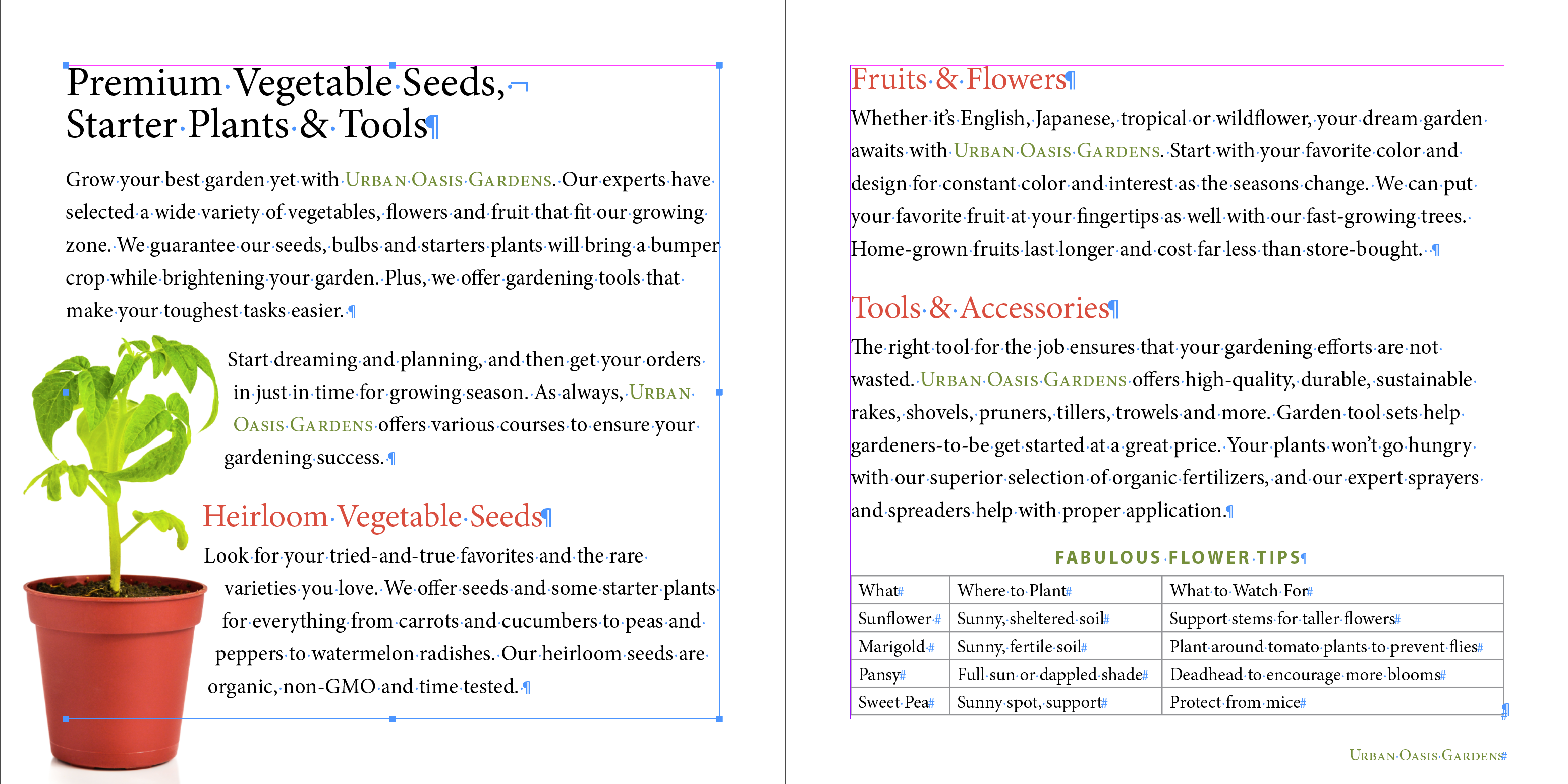
Styles are probably the most important and powerful feature set in InDesign. They are why it is a professional tool. They are not simple, but it's their inate complexity that makes them powerful.

Remember, digital publishing is all about saving time, meeting deadlines, and producing consistant, high-quality designs.

Understanding Styles

Styles store information about the formatting of a category of object that pretty much align with the settings you'll find in a given object's Panel, like:

Characters: Fonts, weights, sizes, kerning, leading, tracking, glyphs, etc.

Paragraphs: Alignment, spacing between, indents, character styles, etc.

(Graphic) Objects: Fill, stroke, text-wrap, corners, etc.

Tables & Cells: Horrid drugery and to be avoided at all costs.

Basic Styles

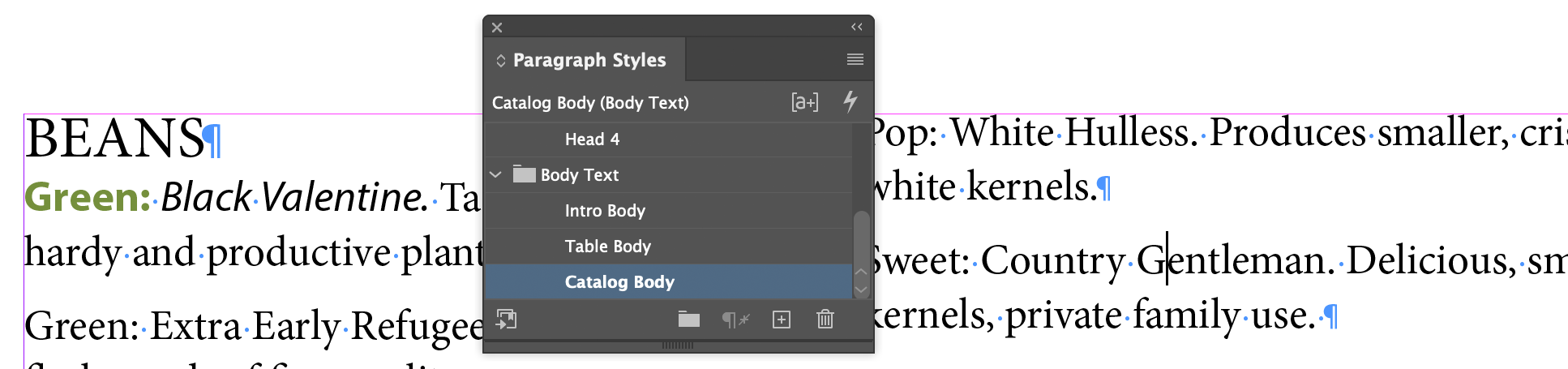
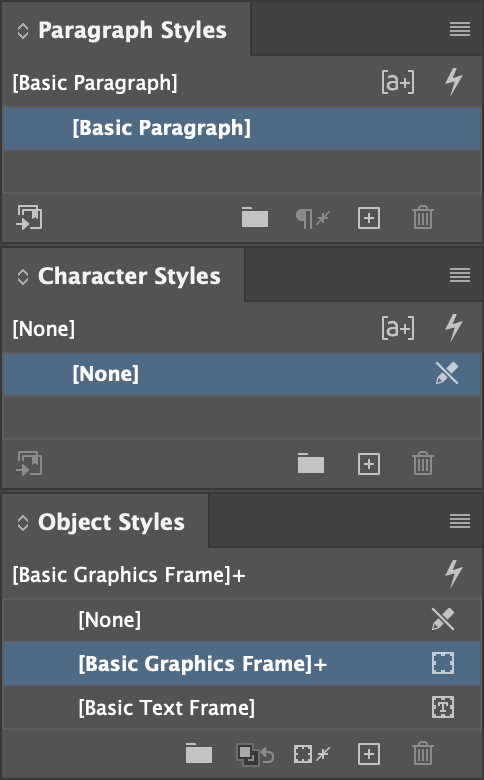
AKA Default Styles. The ones in the Styles panels that are in square brackets, like [Basic Paragraph]. What a given object has applied to it when you don't do any styling of your own. When you apply attributes to an object, like set a word to italic and red, you modify the default style and rename it to create a new style. Whenever you find yourself repeating a formatting task, stop and think about whether it makes sense to modify the relevant basic style or creat a new style.

Creating and Applying Paragraph Styles

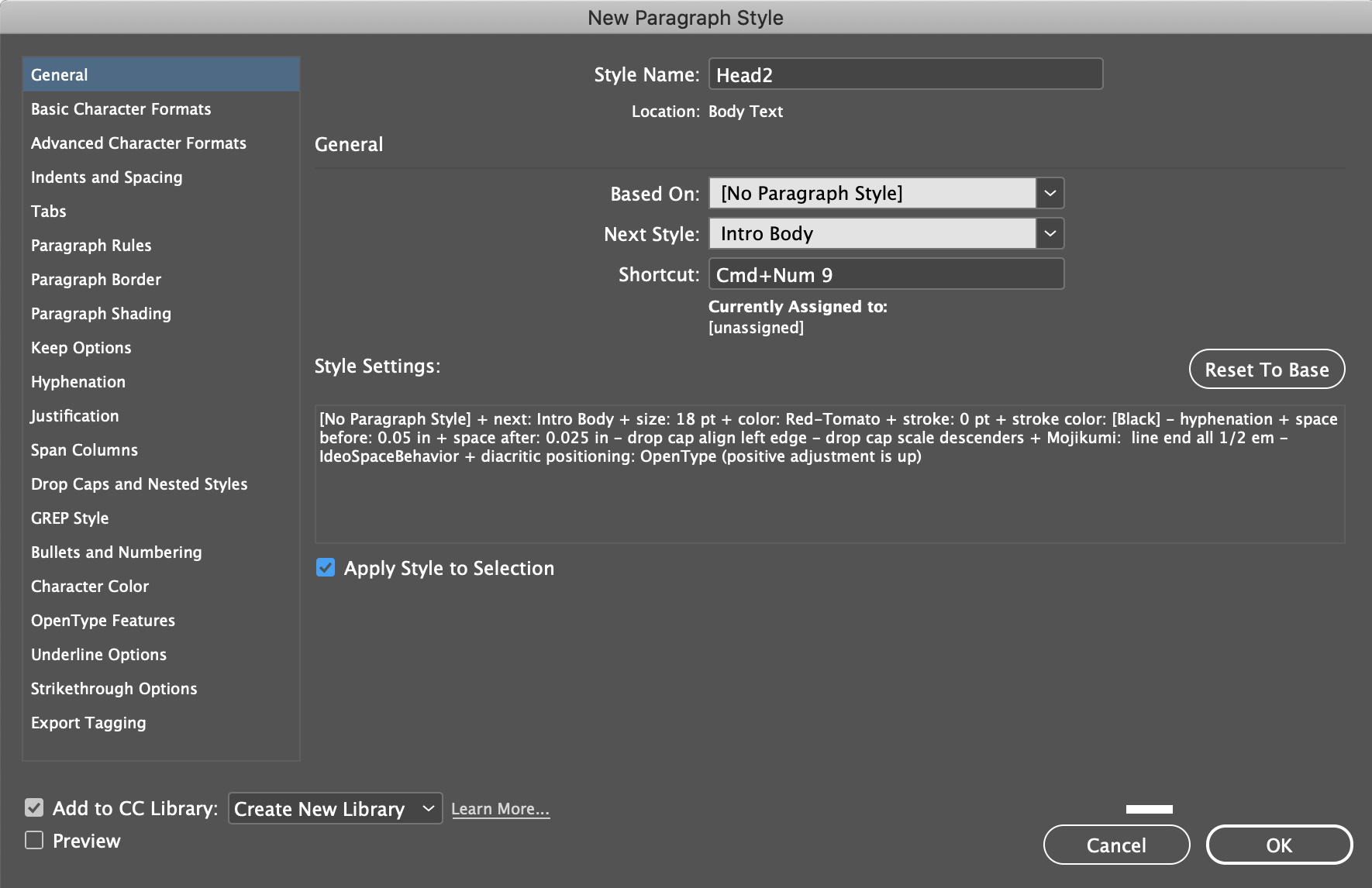
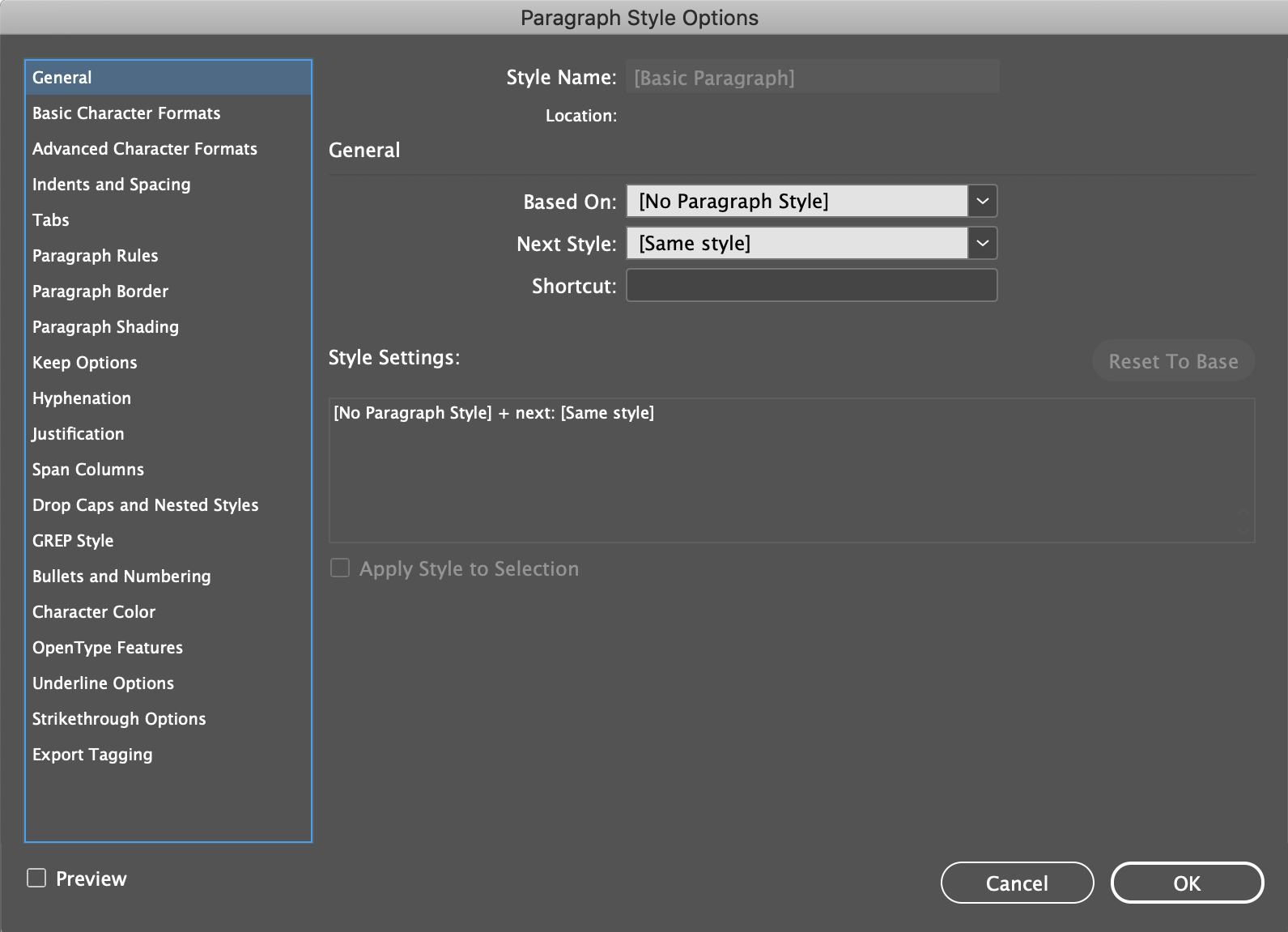
The Paragraph Styles dialog has more than 230 different buttons, checkboxes, and menus in it to set the various parameters of a paragraph style. From as simple as Indent Spacing, to as complex and precise as the HTML tag format for the style when it gets output for the Web.

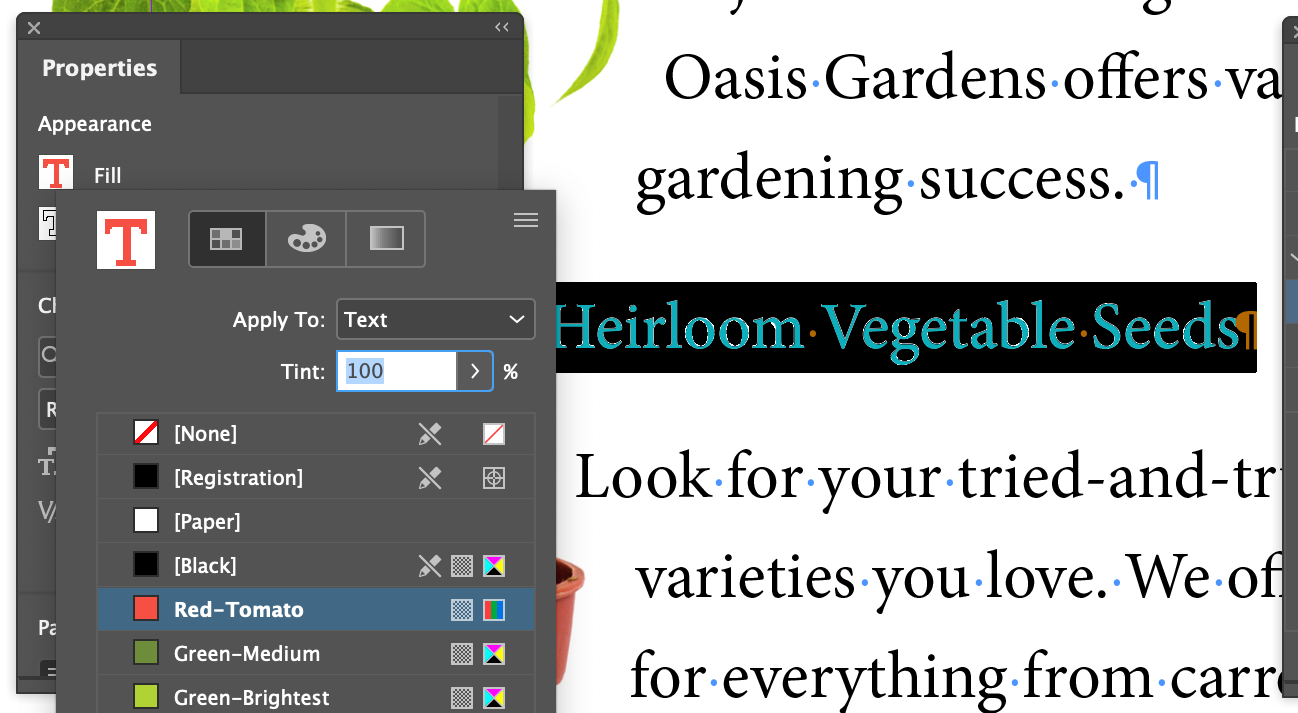
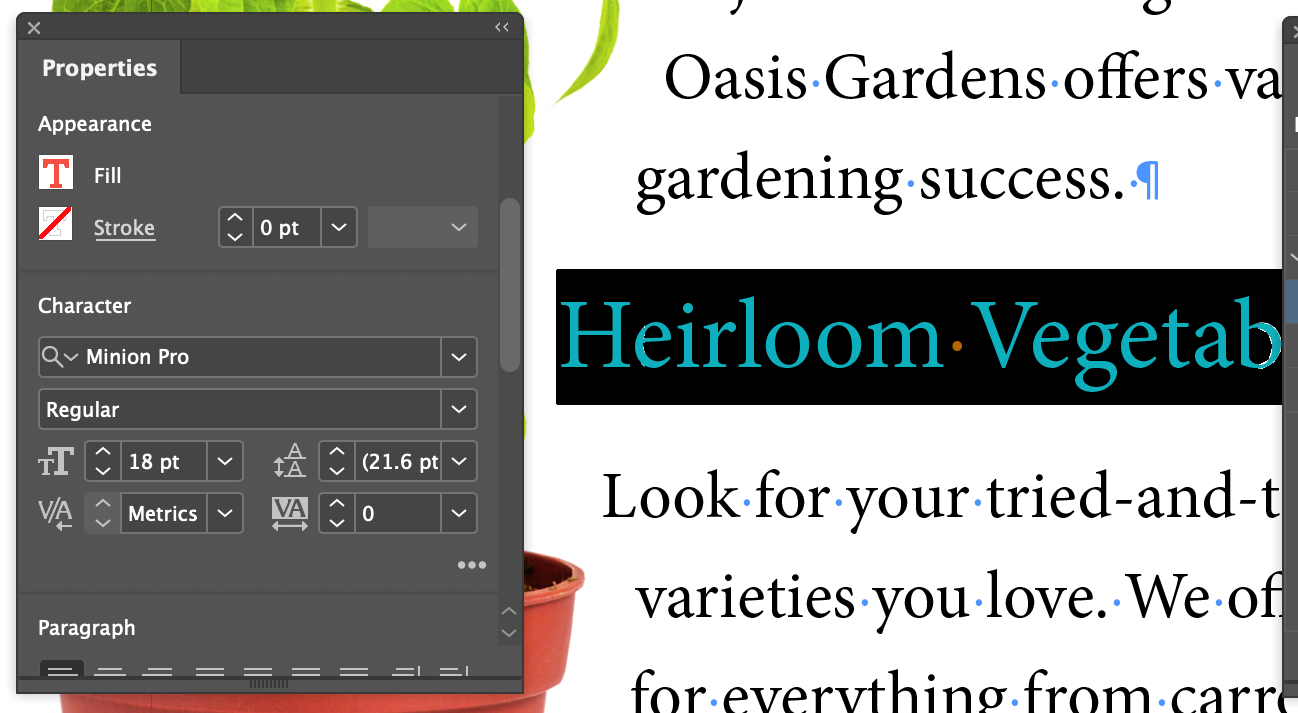
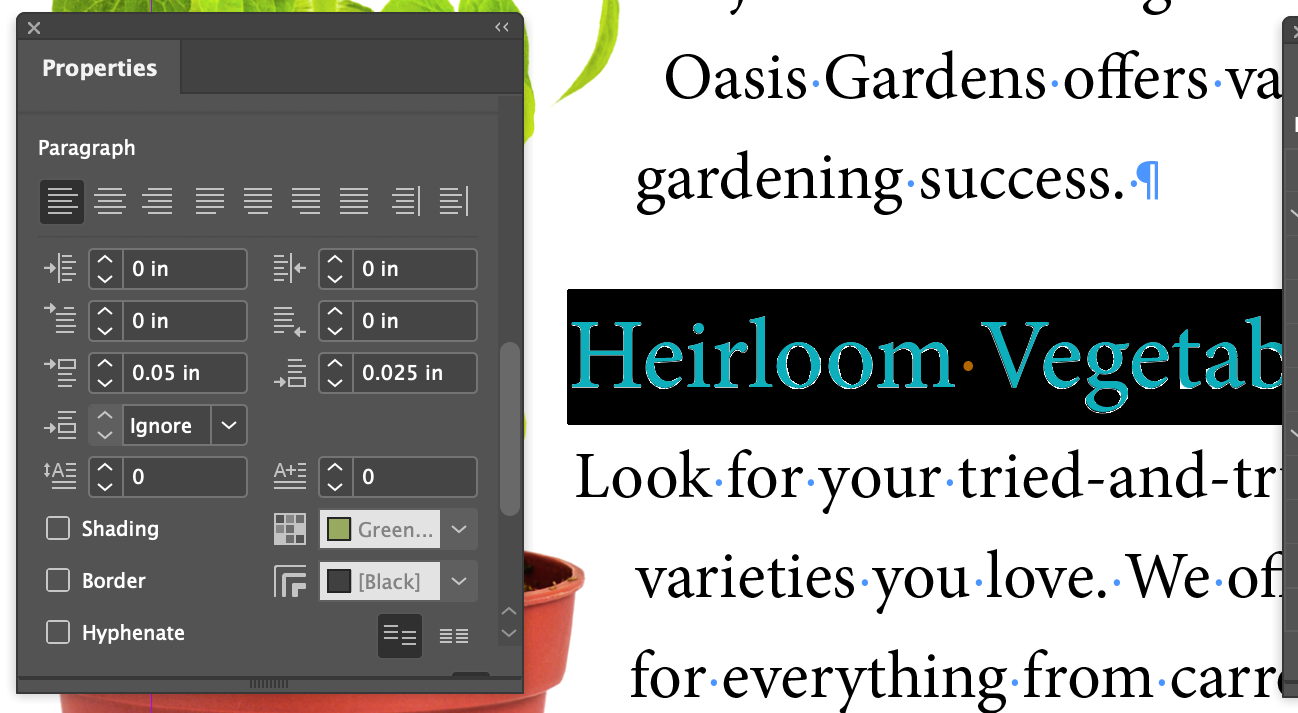
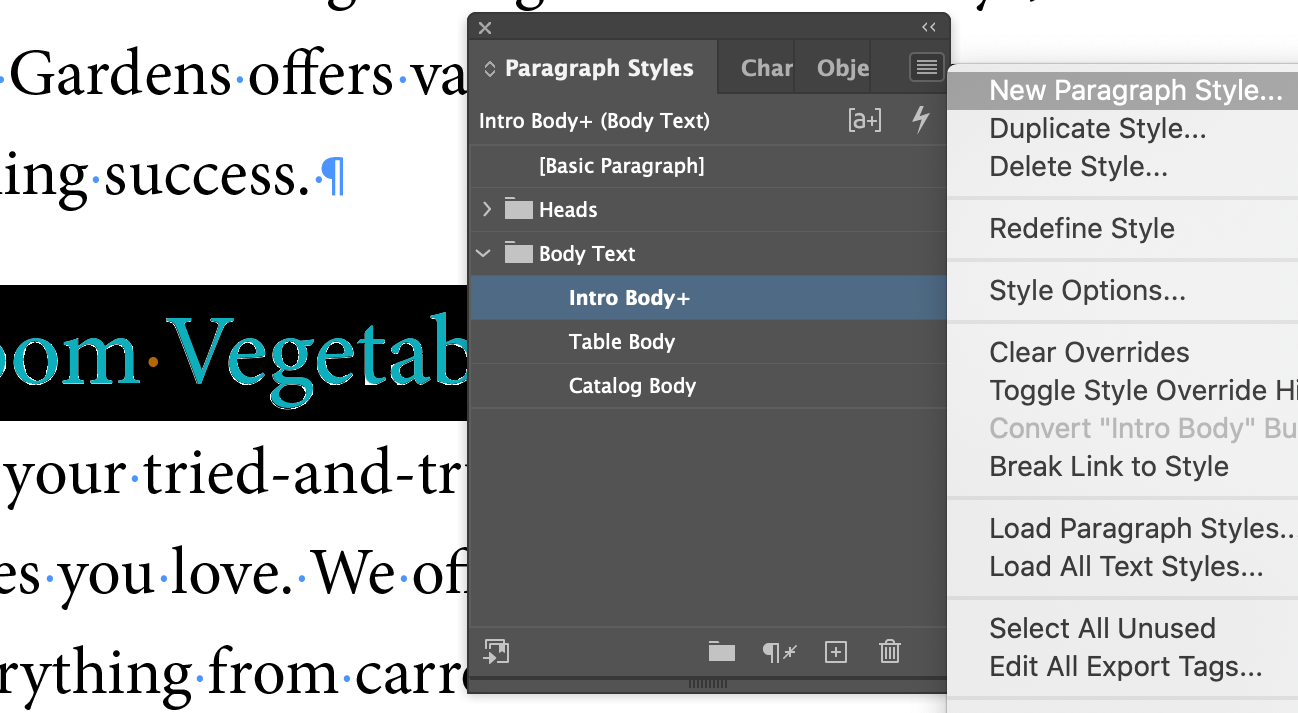
Creating A Paragraph Style

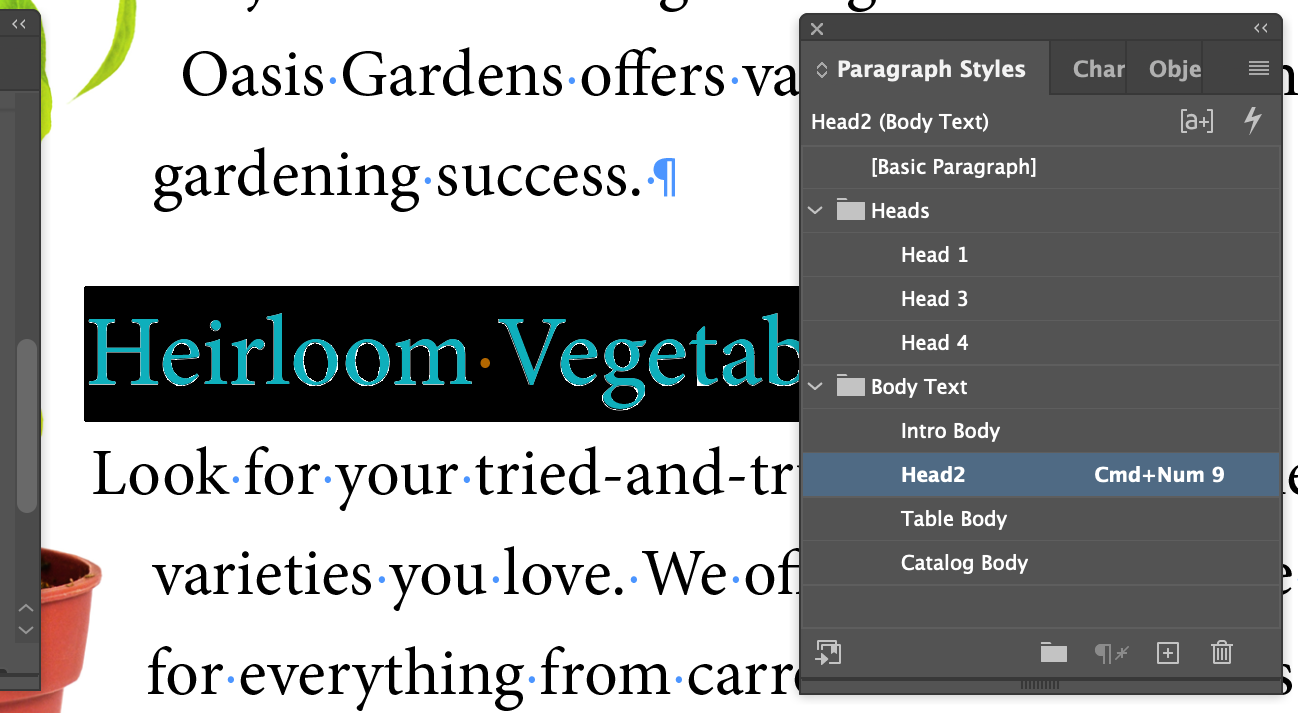
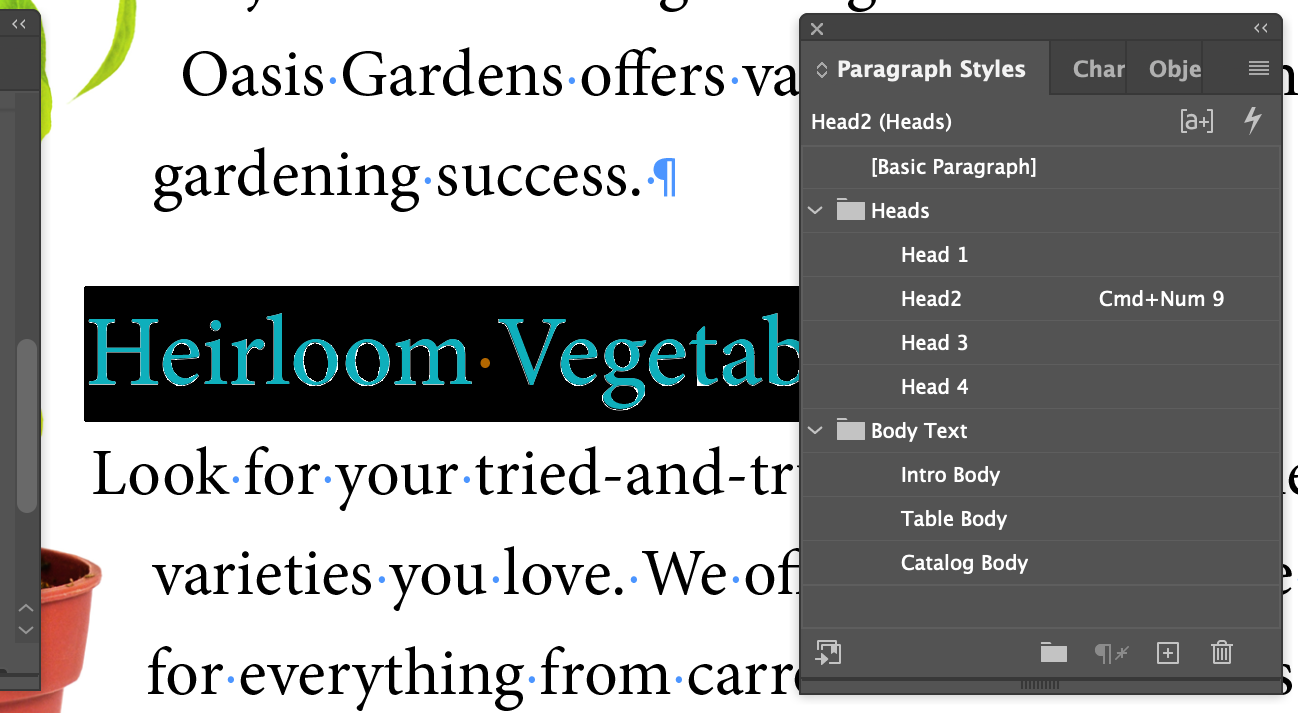
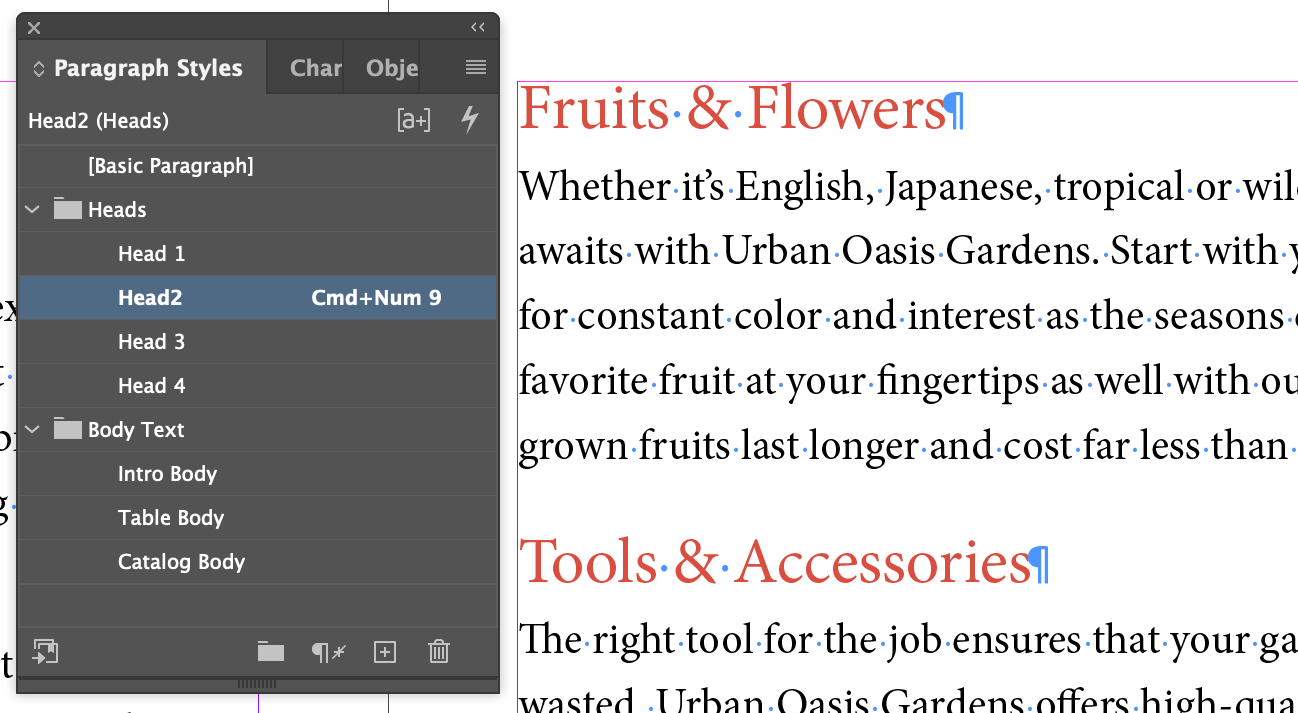
Applying A Paragraph Style

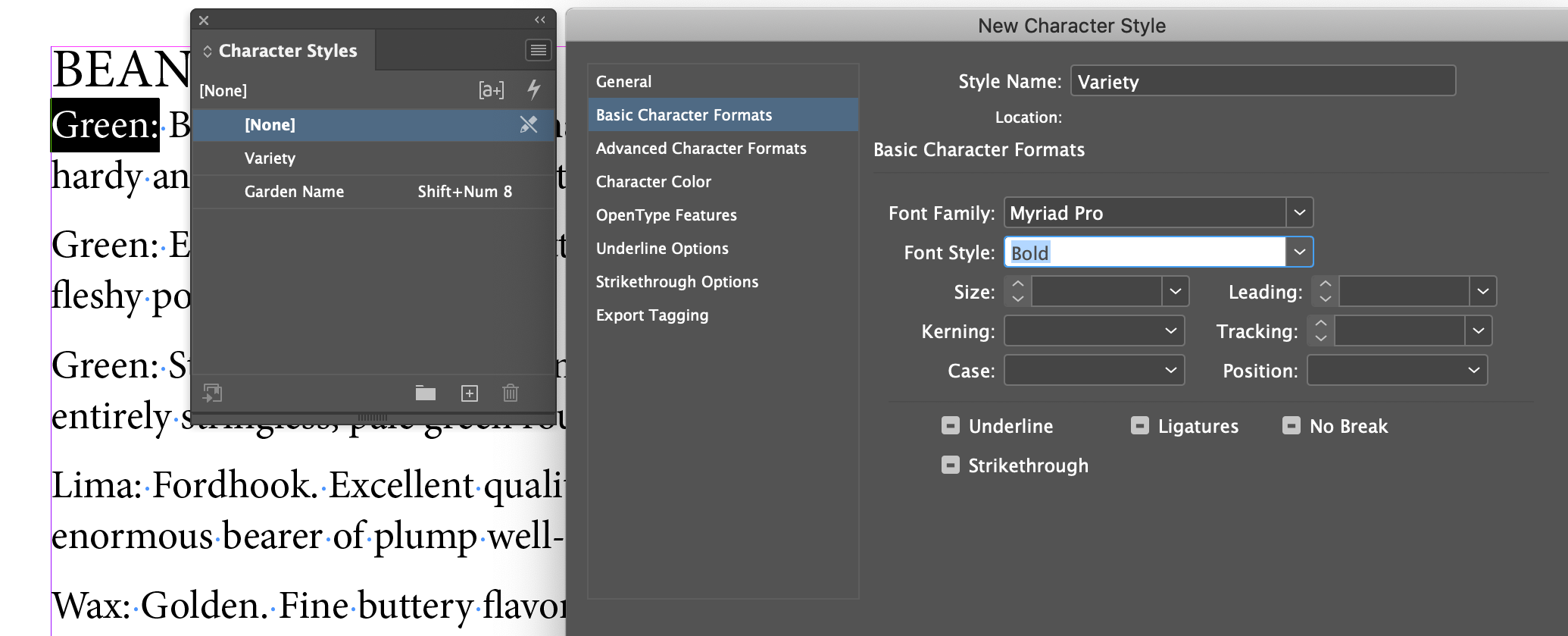
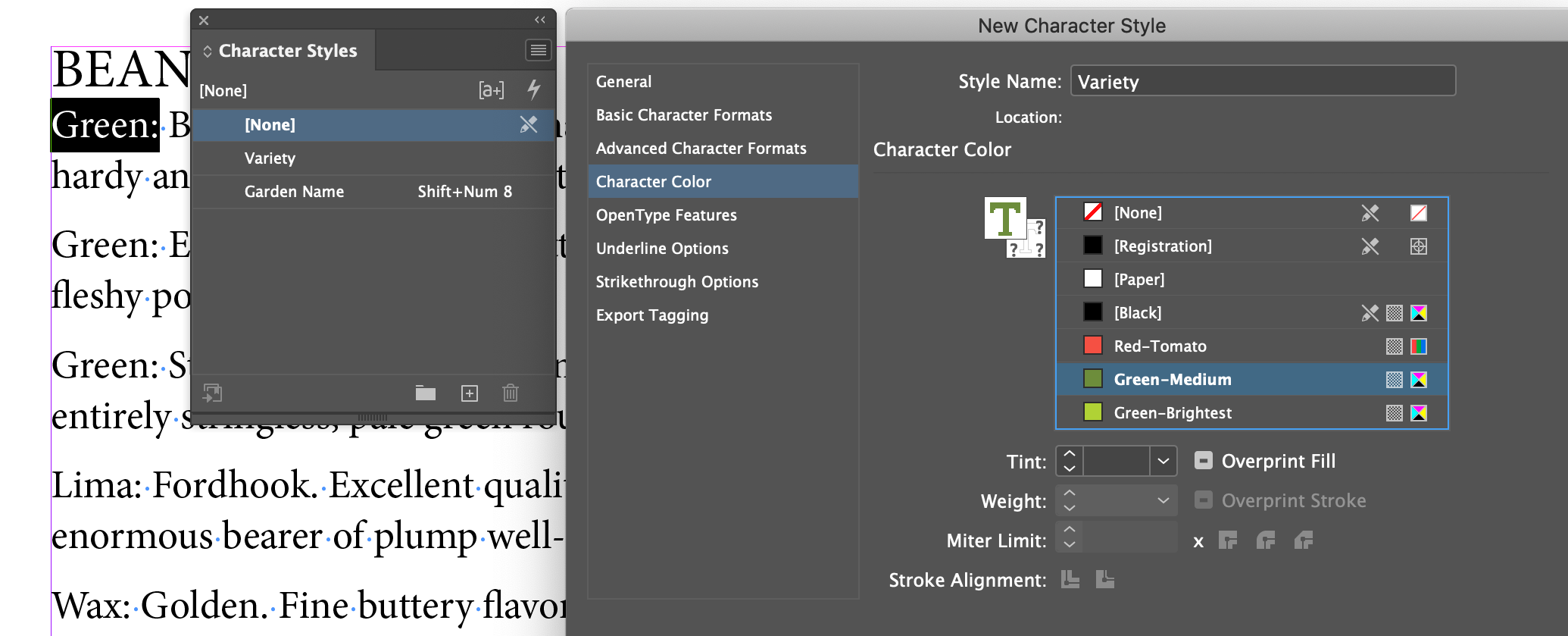
Creating And Applying Character Styles

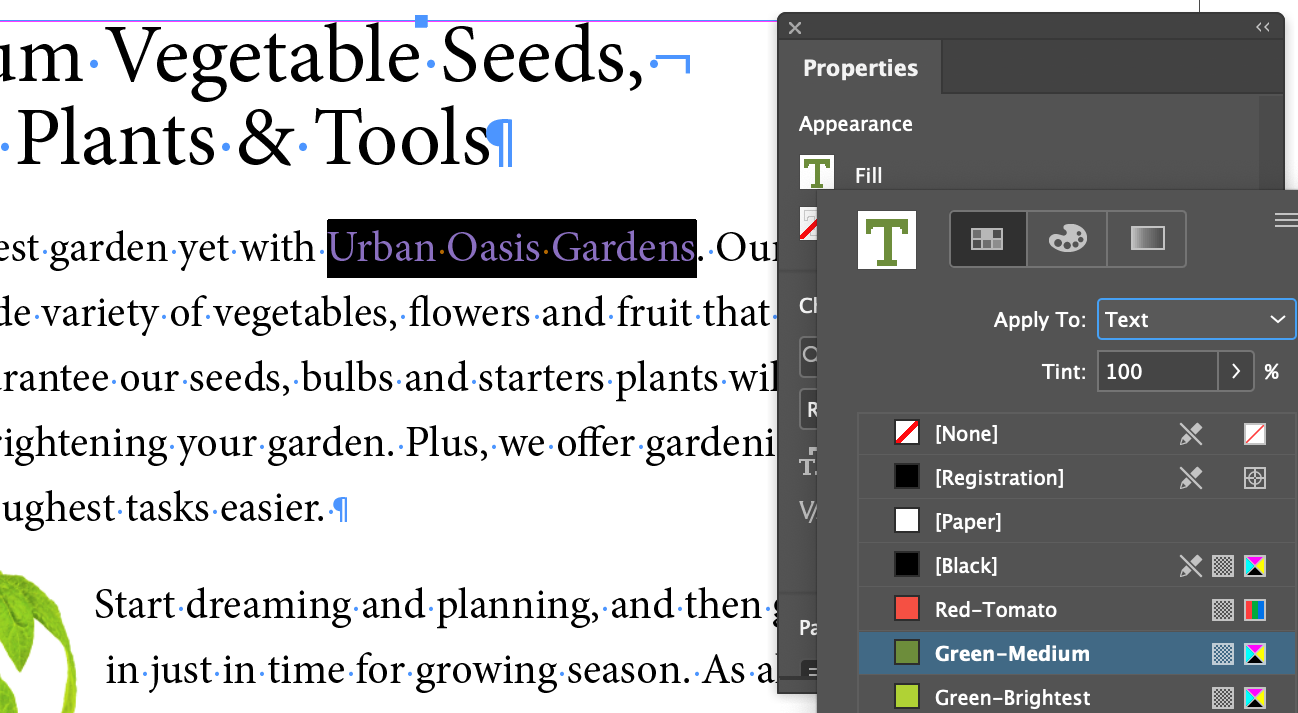
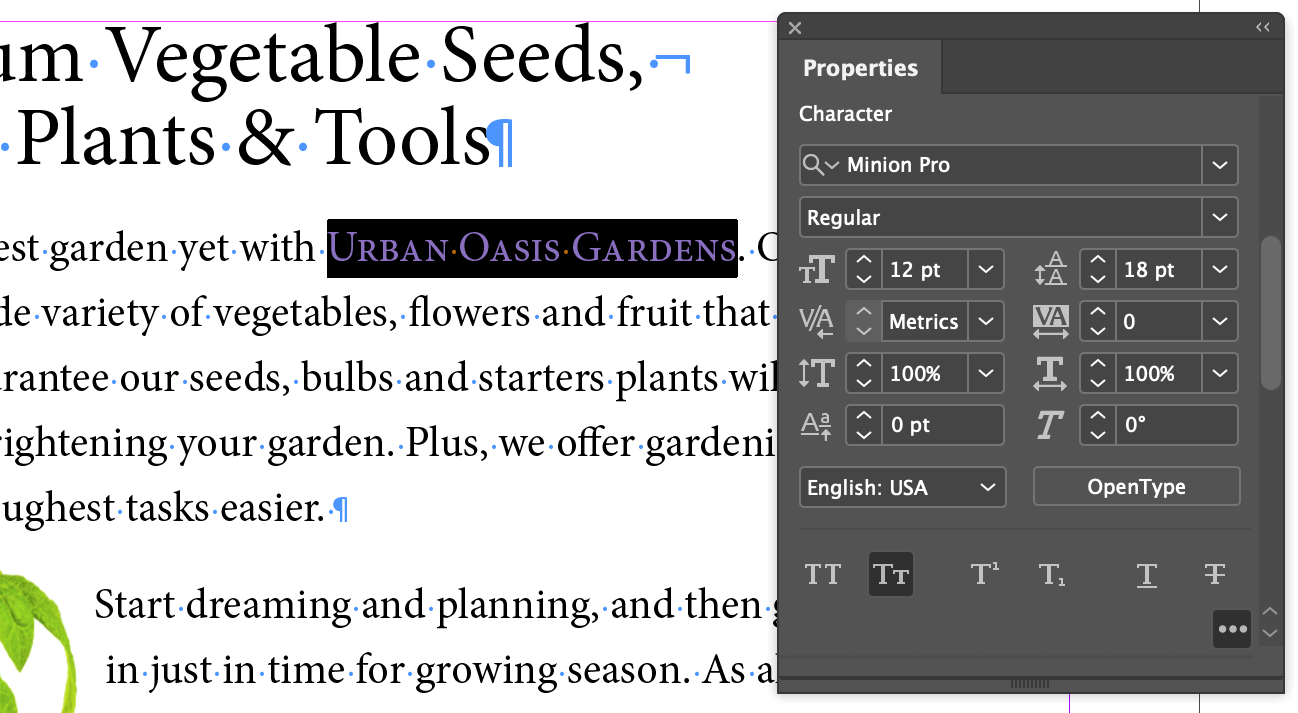
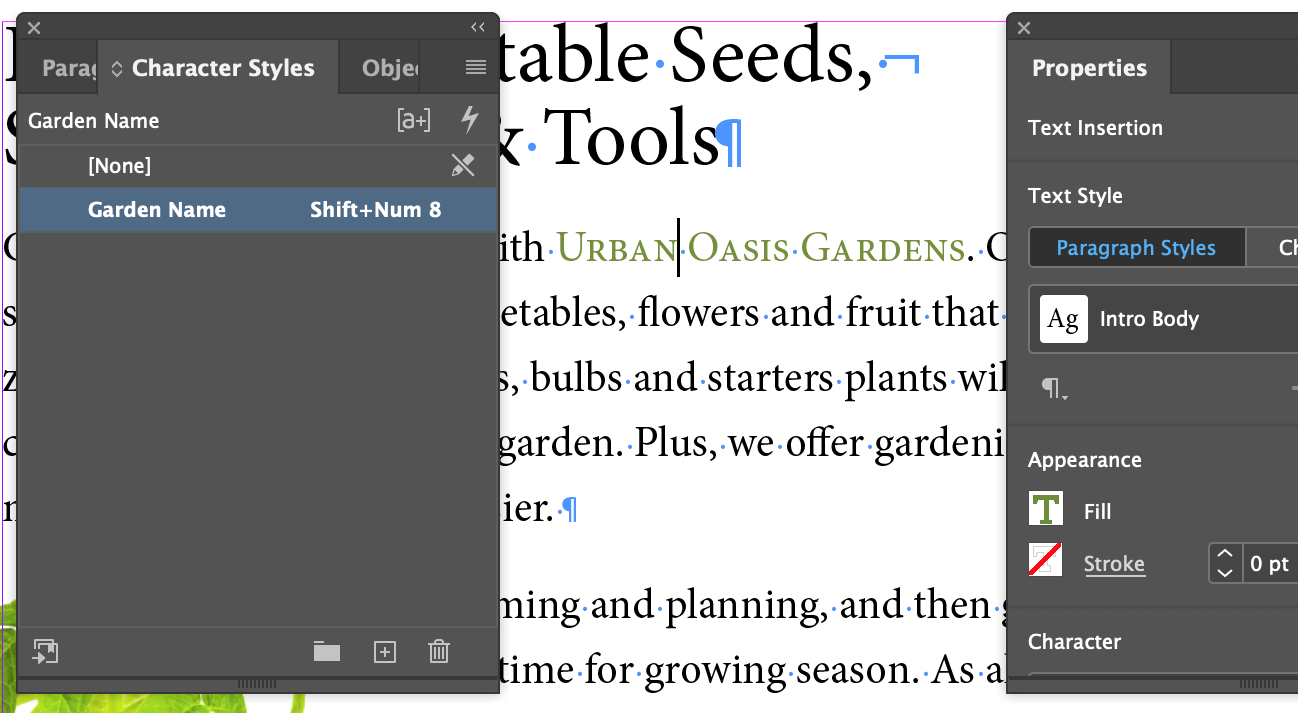
The big concept with Character Styles as opposed to Paragraph styles, is that a Paragraph Style will apply to the entire paragraph that the text cursor is positioned within, you don't have to select the whole paragraph to apply it. Character Styles will only apply to the set of characters you have selected (and shows as inverted in the UI).

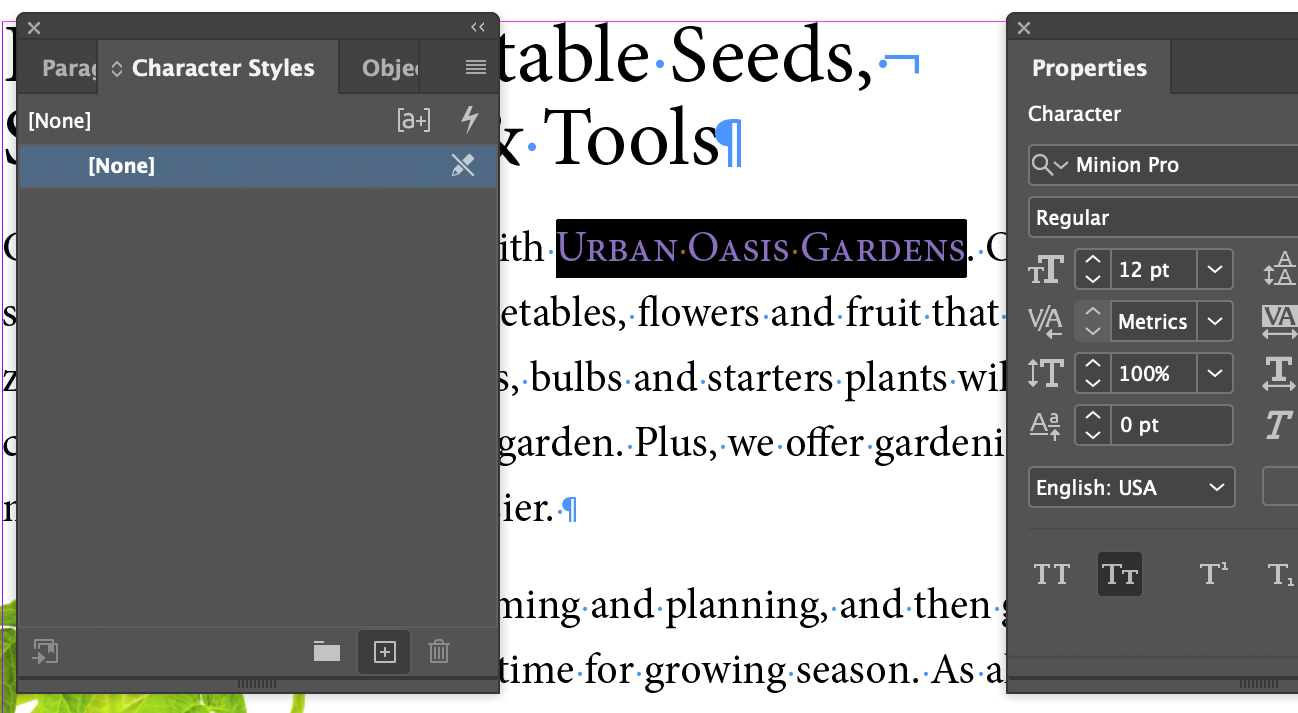
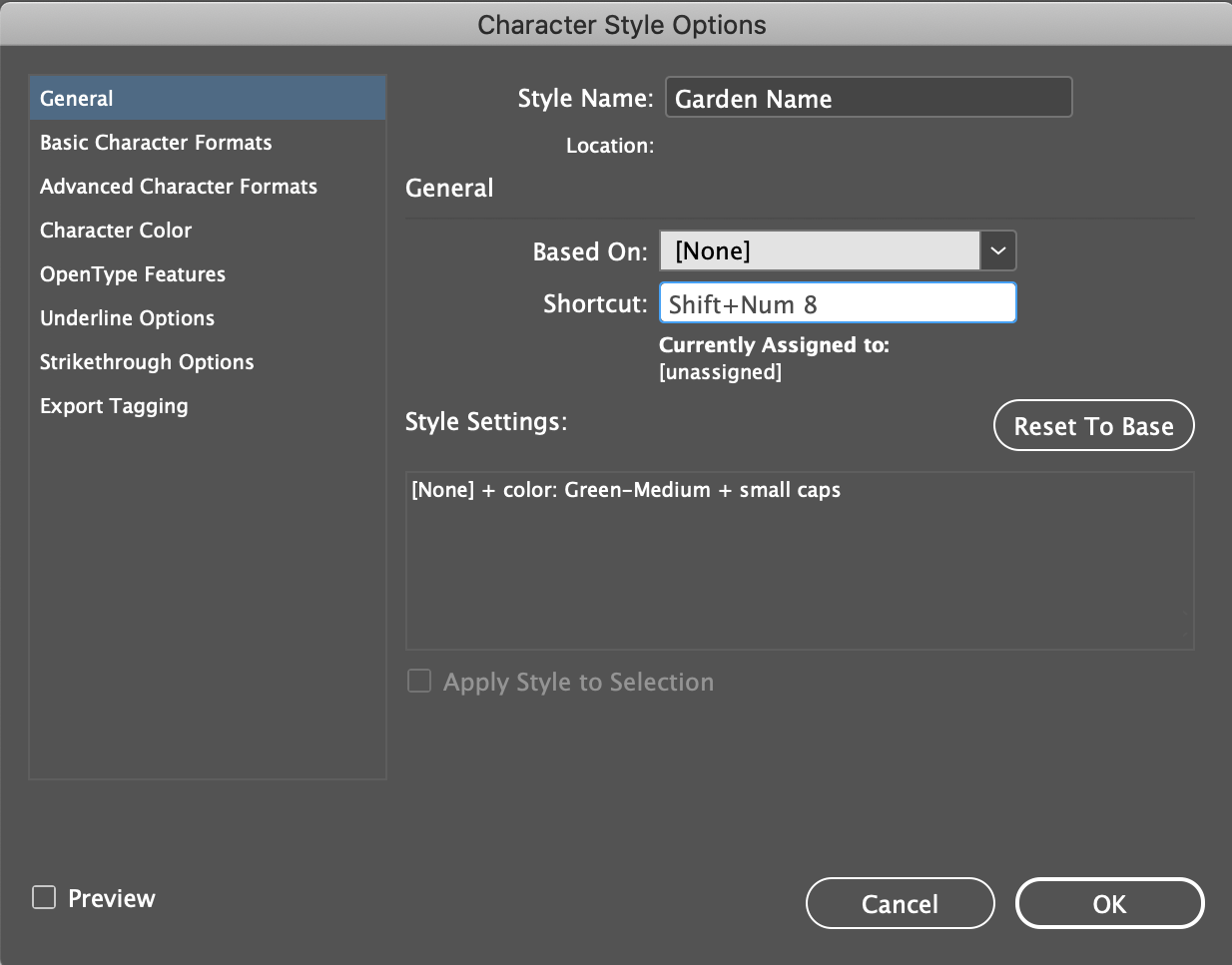
Creating a Character Style

Applying a Character Style

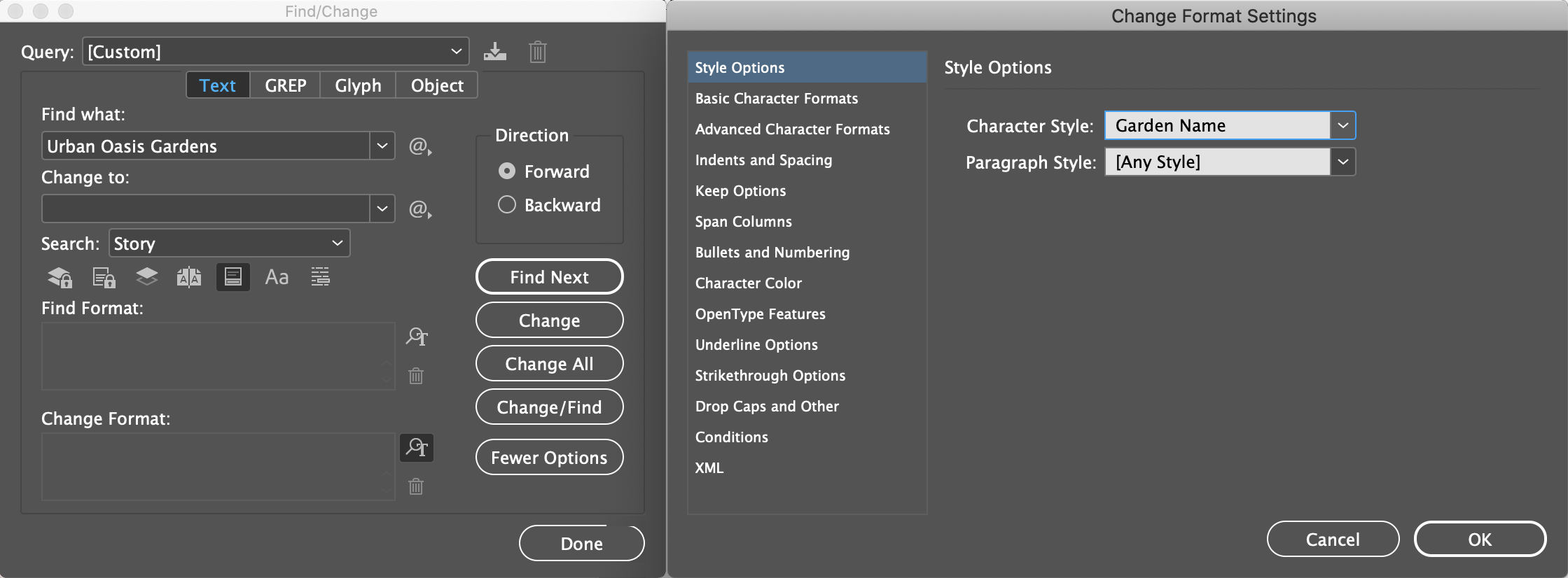
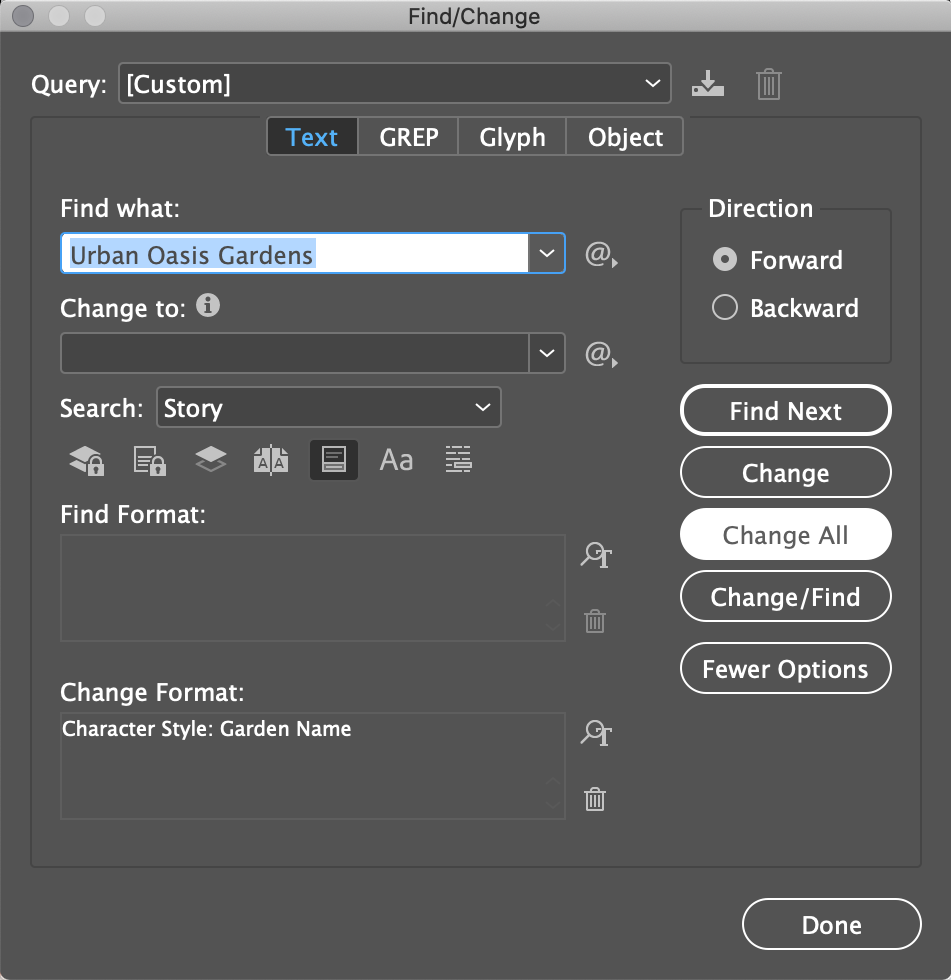
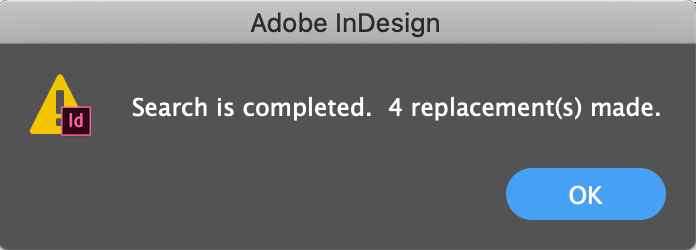
It's really just a matter of selecting a block of characters and clicking on the Character style you want in the Character Style panel. However, since we're styling the name of the company wherever it is in the we could use the Find/Change feature in InDesign (even though there are only three other instances of the name - it could be a big document with dozens of repitition of the name).

Apply Styles with Quick Apply

In a production environment, speed and efficiency are everything. Use Command-Return/Ctrl+Enter to invoke a popup menu of styles (of all applicable types) and start typing the name of the style. As soon as the one you want is at the top of the list, hit Return/Enter to apply it.

Nesting Character Styles inside Paragraph Styles

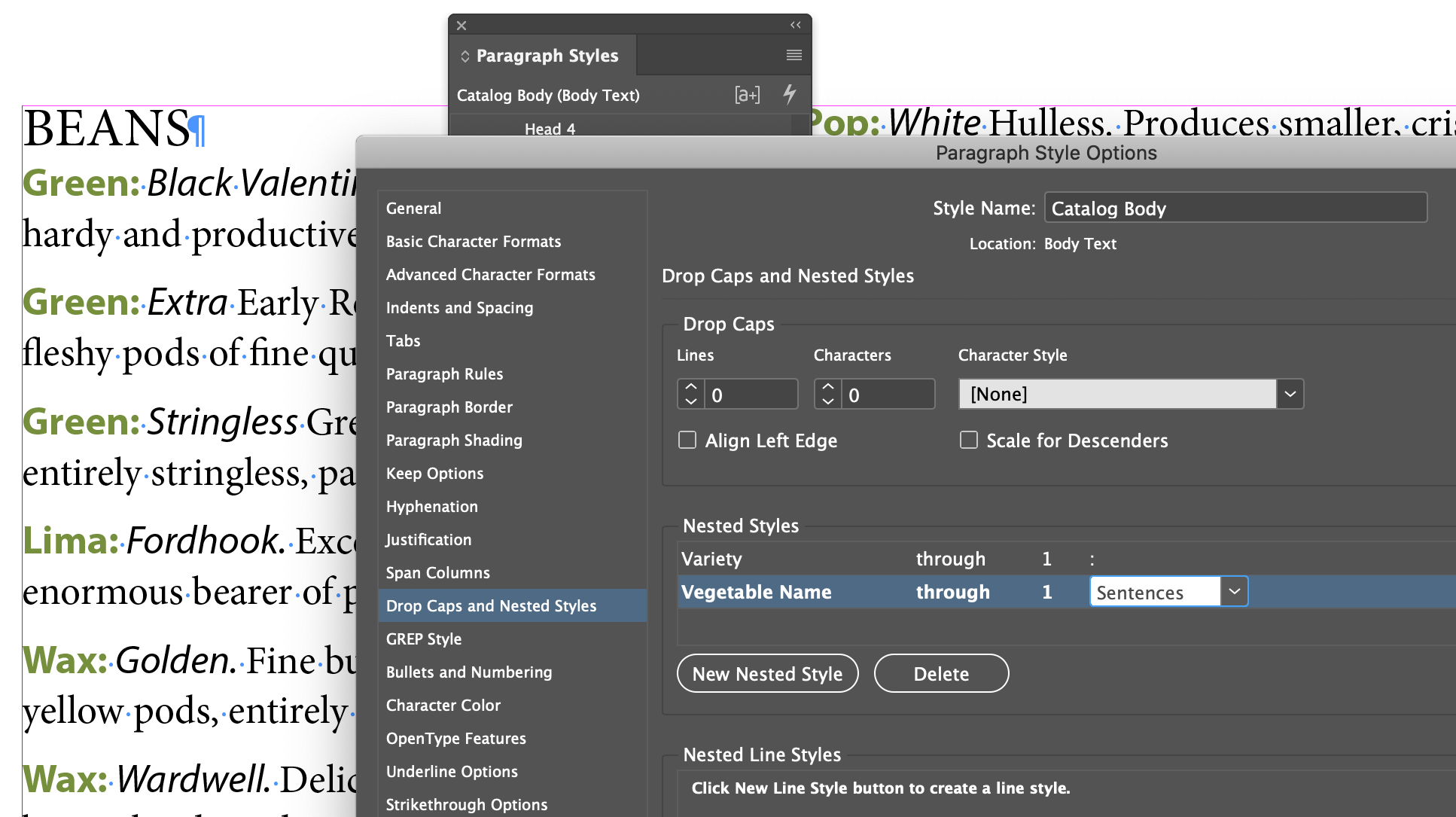
Nesting is wierd and takes a lot of careful setup. I think it's mostly a feature that played well at conference demos, but isn't used much in the real world. Let's take a quick look just for grins. I think it speaks to the tendancy for feature bloat that so many mature applications suffer from...

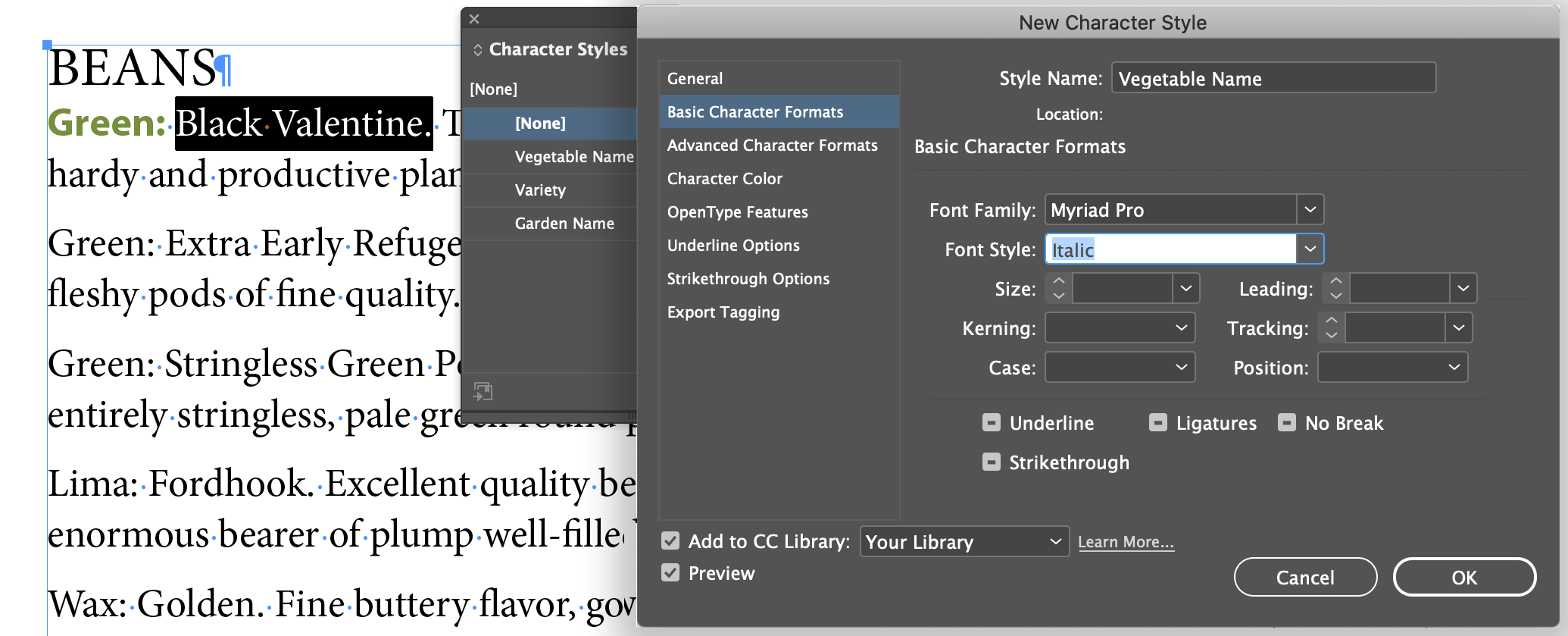
Creating Character Styles for Nesting

Creating a Nested Style

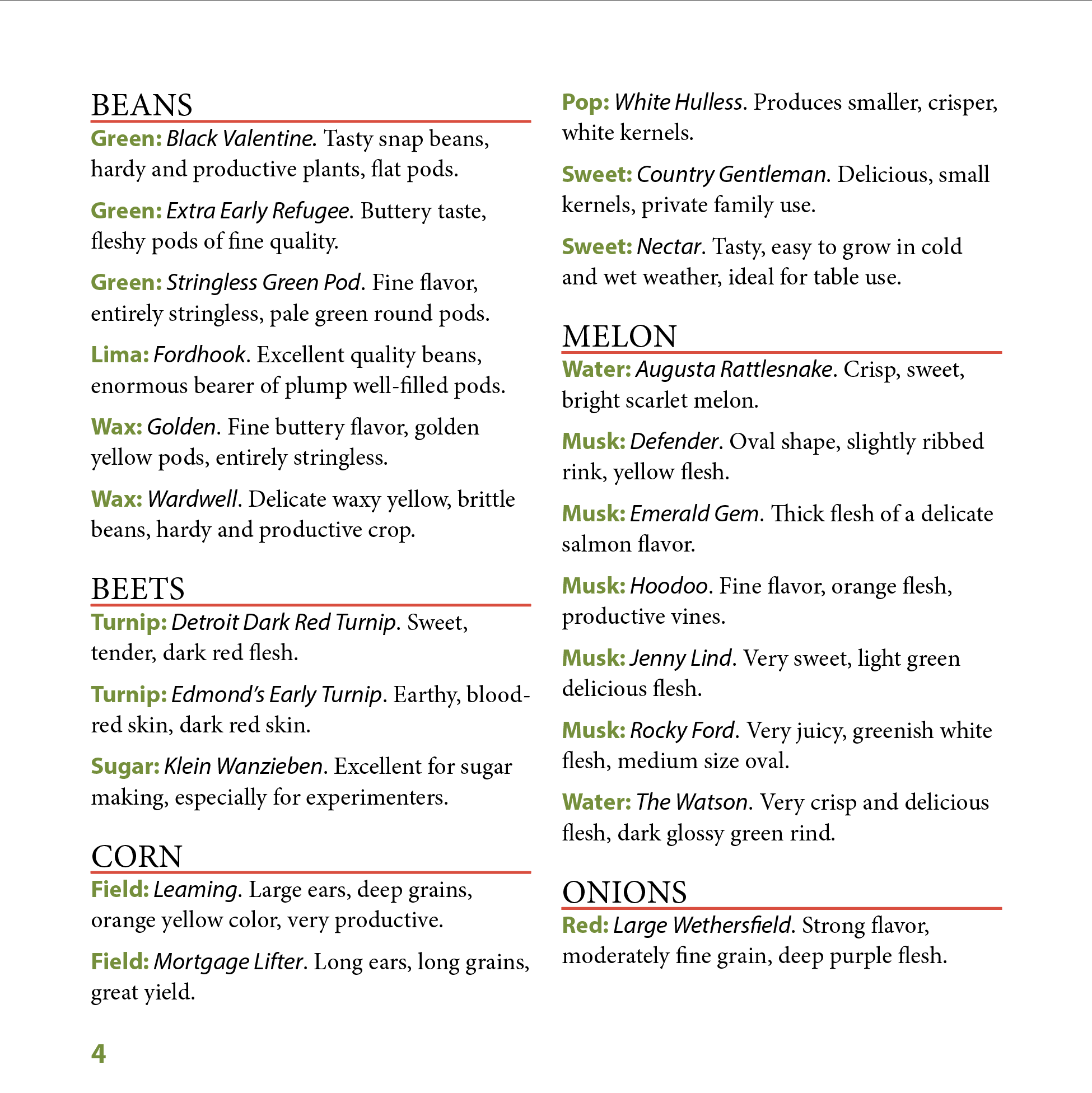
Once you commit the changes to the style, all instances of the Catalog Body style will show the nested styles.

Creating and Applying Object Styles

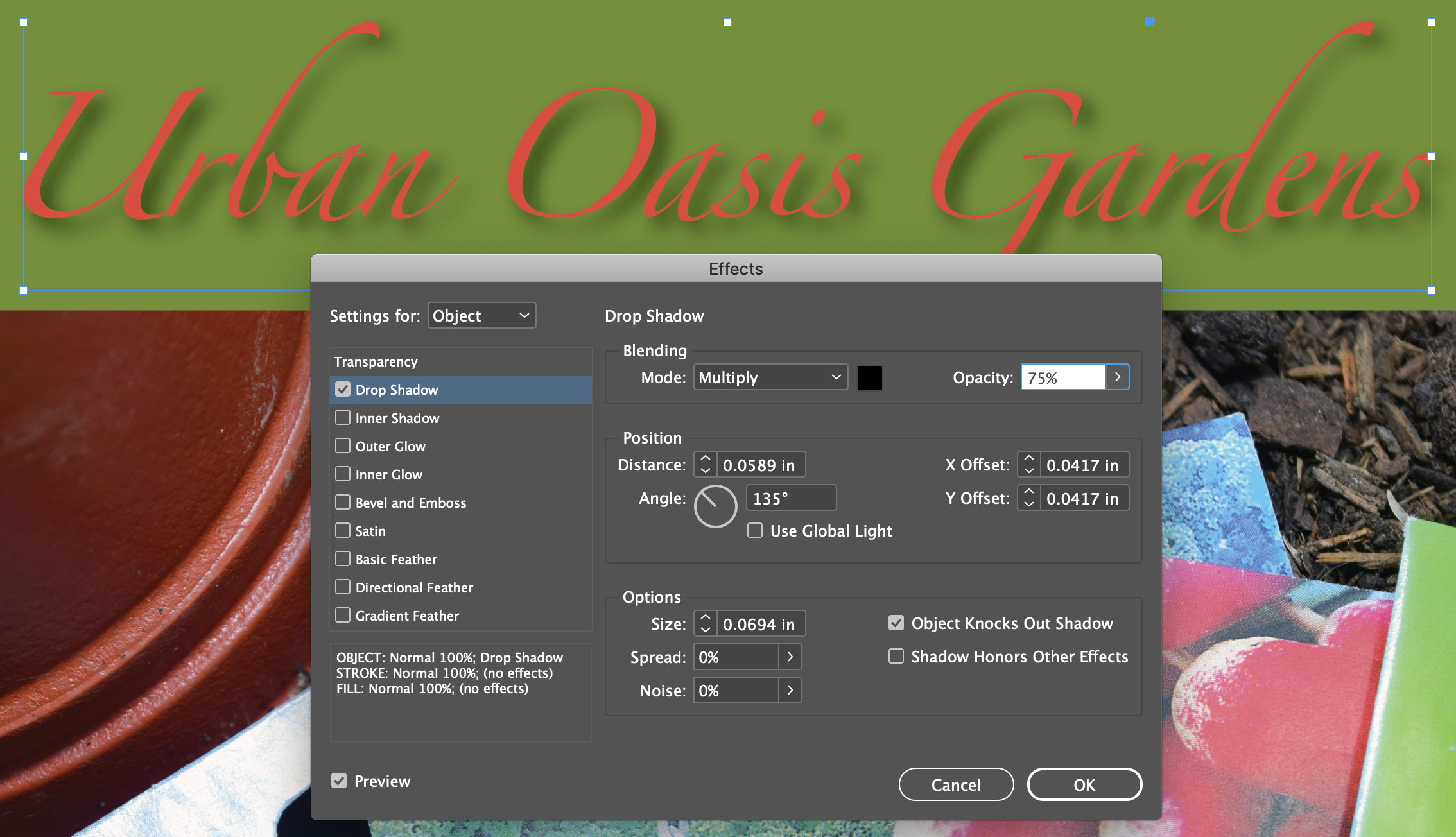
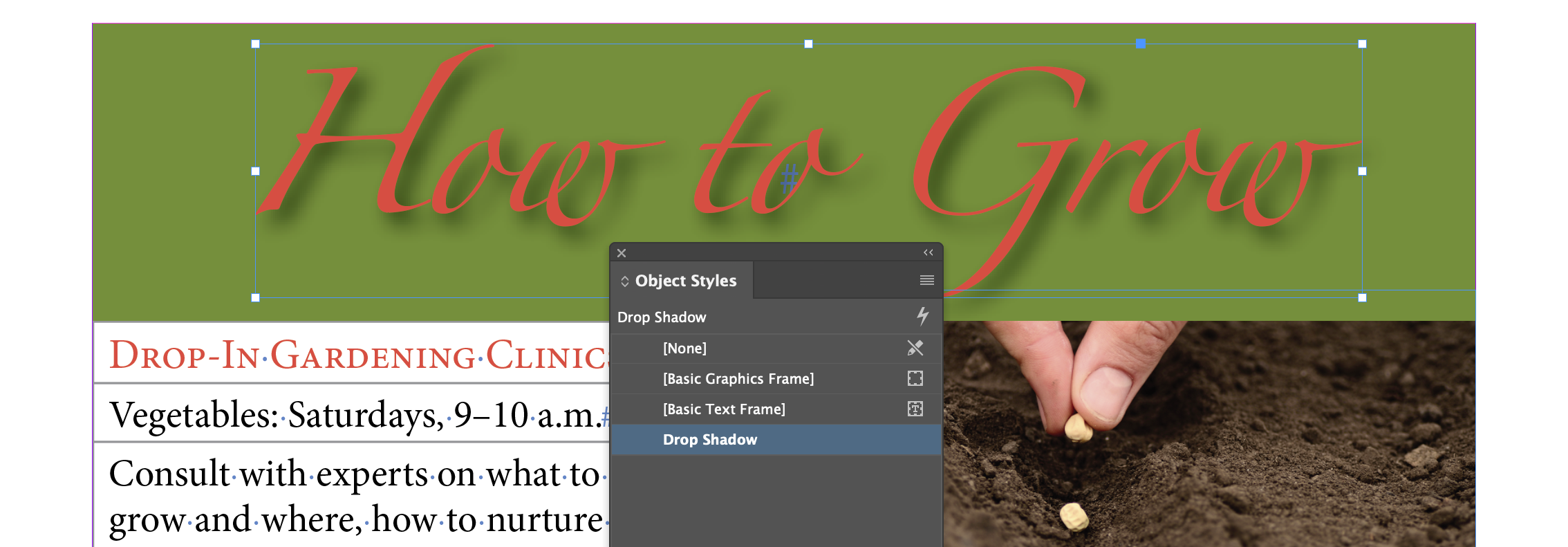
Object styles are styles applied to graphics rather than characters or paragraphs. Things like Effects, Strokes and Fills. The example in our textbook I think is confusing, since it's done on outlined text rather than editable text, which you can get by selecting editable text then choosing Menu Type Create Outline . What makes it confusing is that you can also apply an effect like drop shadow to both editable text and outlined text. And you should never create outlined text when you don't have to!

Formatting an Object for a Style

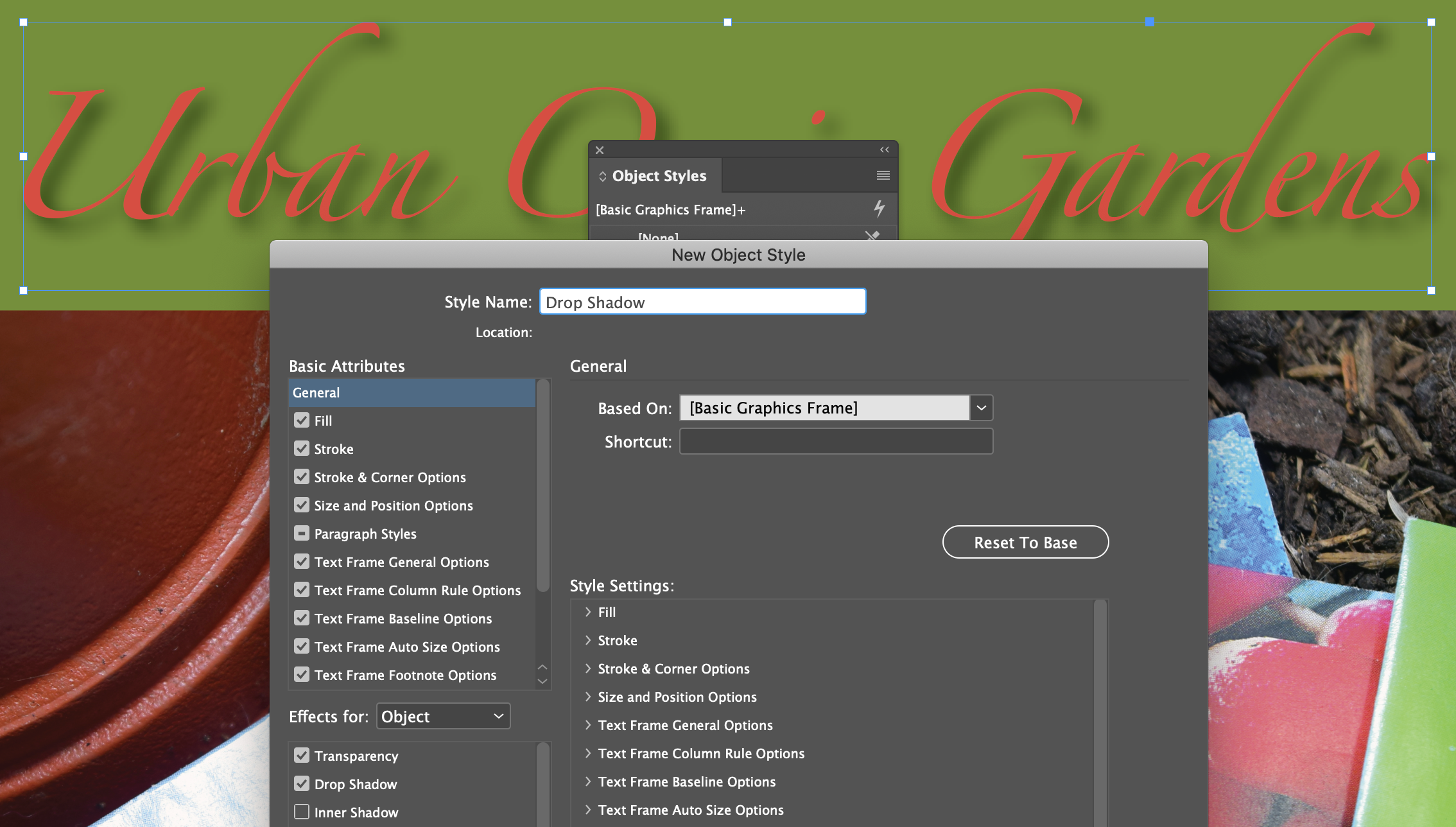
Creating an Object Style

Applying an Object Style

Creating and Applying Table and Cell Style

Ugh. Rarely used and damned confusing. Something that if we learn it now, it will be so long until we have to use it again, that we'll never remember how it works, at least I cant. I just review the help docs or our textbook when it comes up. Let's pass it by...

Globally Updating Styles

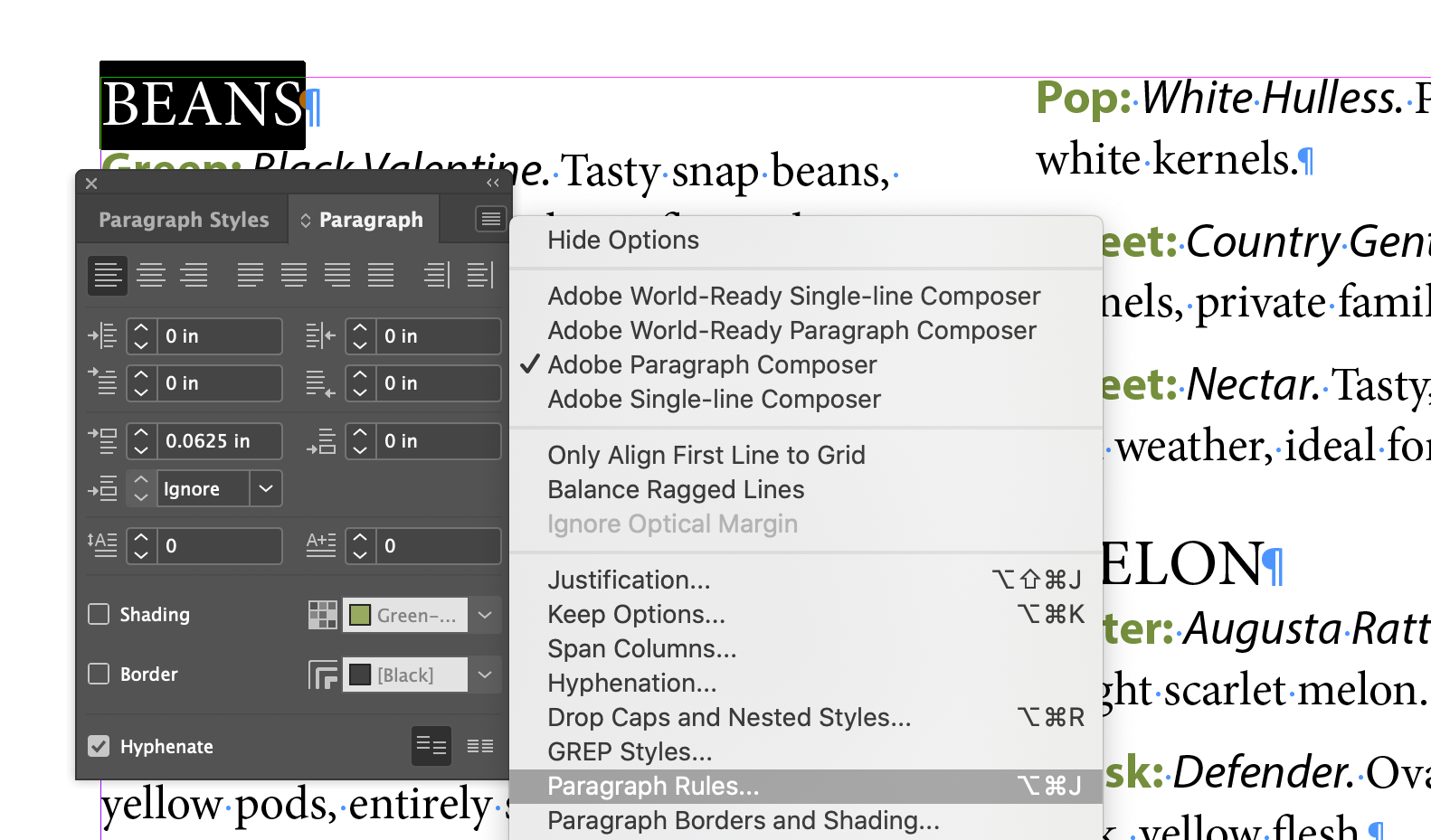
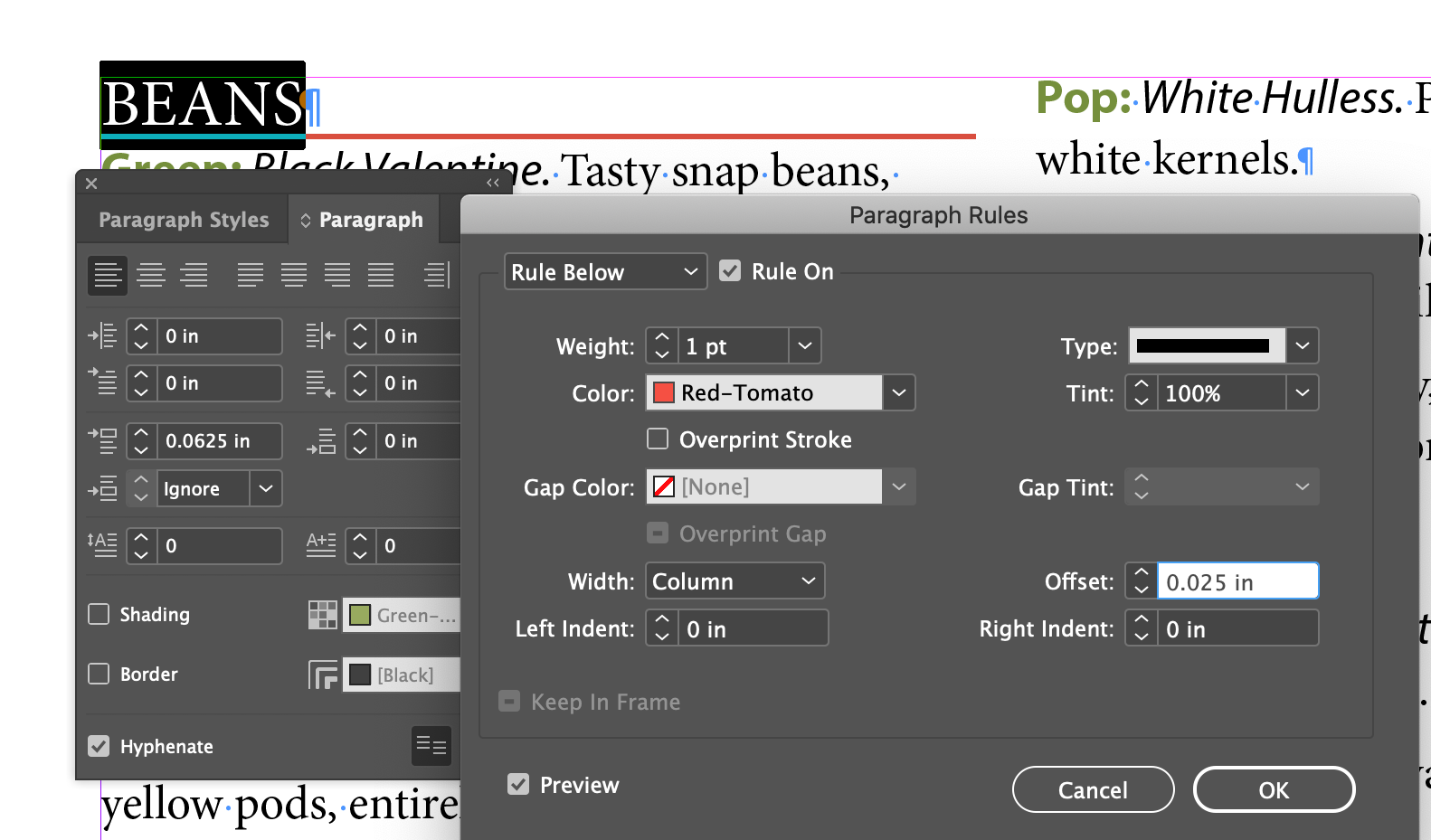
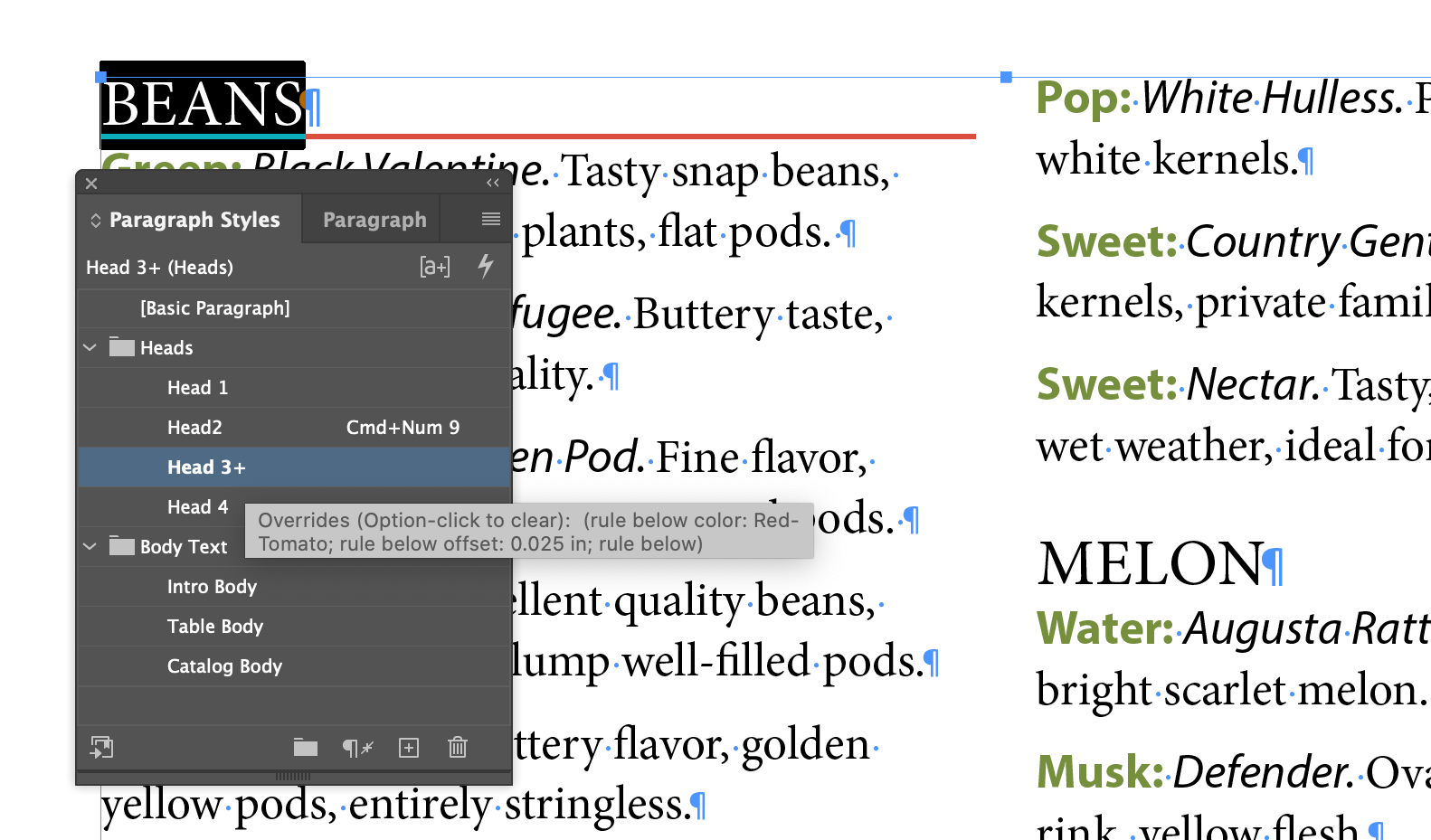
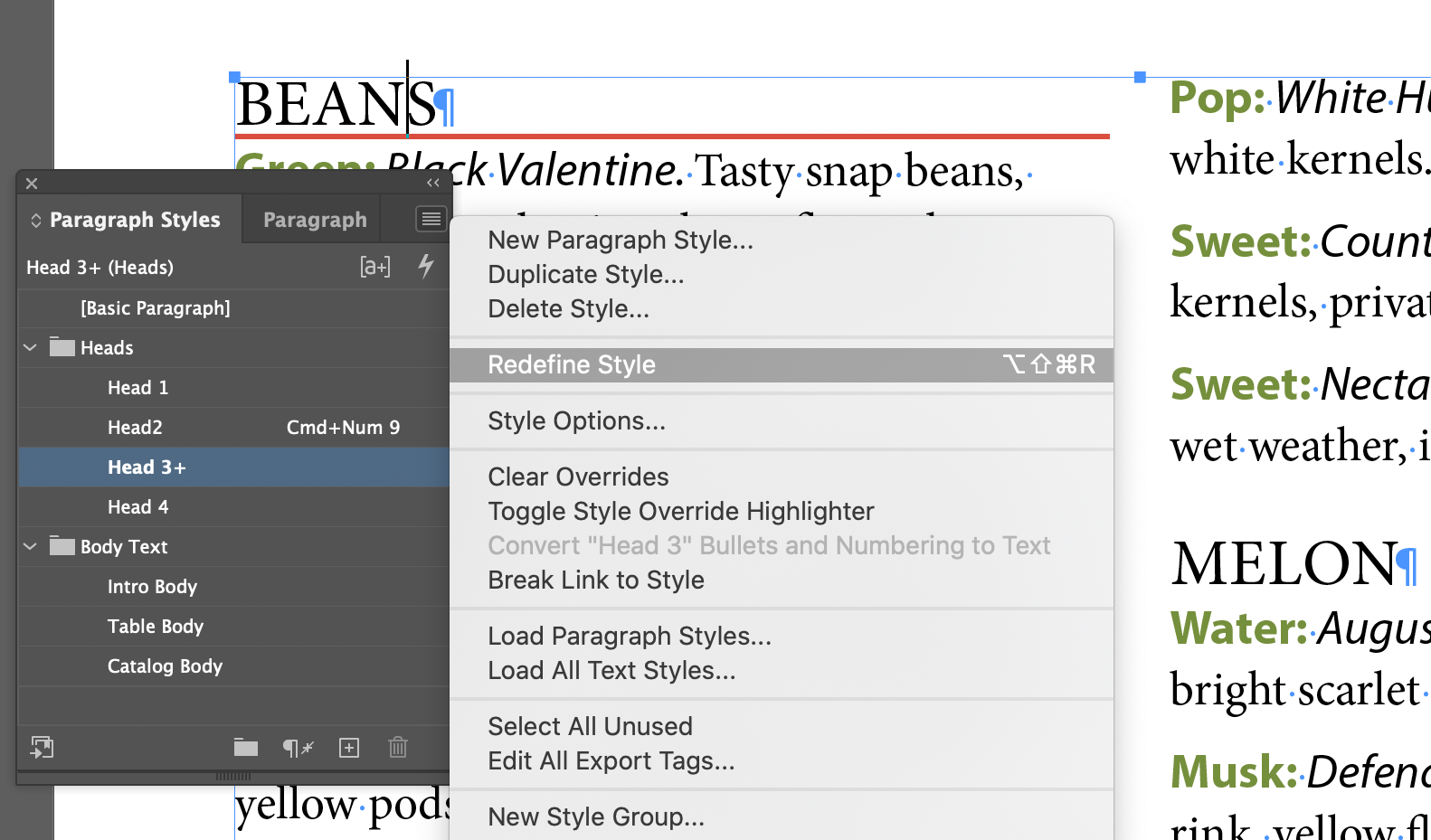
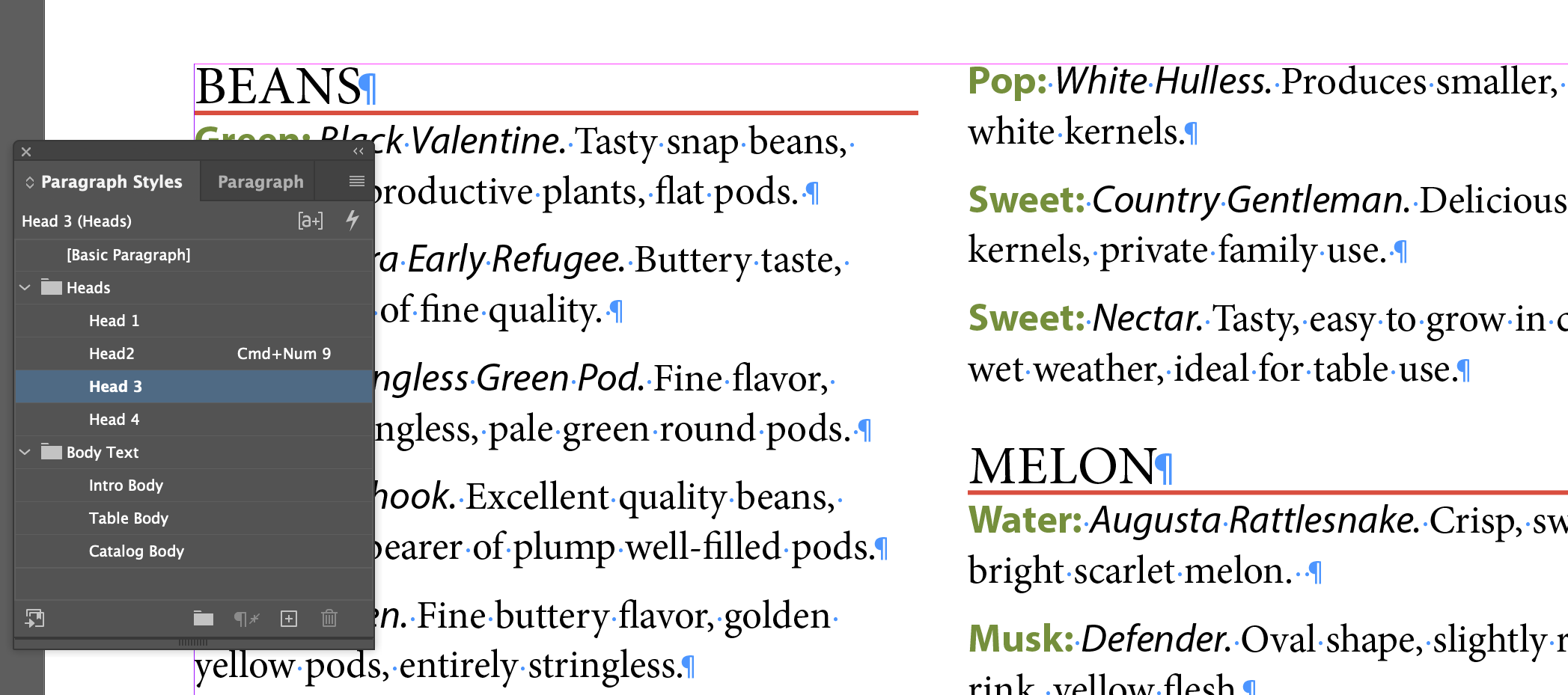
This is actually really important. Every time you format something, it will effect the style of that thing. A little plus mark [+] will appear next to the style in the Style panel. Paragraphs have a default [Basic Paragraph] style applied to them, so if you do any paragraph formatting, it will show [Basic Paragraph] +. It's a good sign that you should probably make a new style to handle the modified styling.

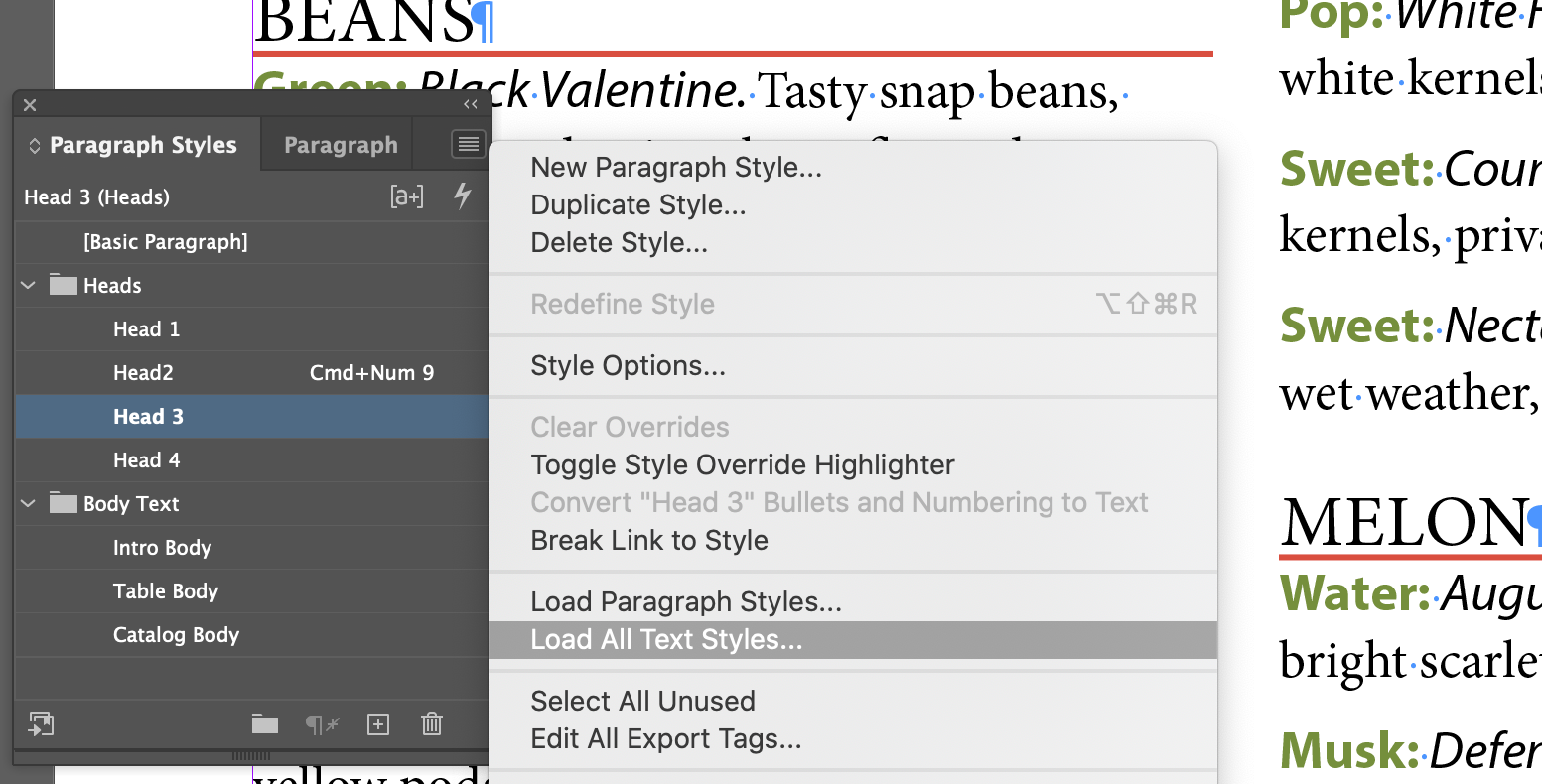
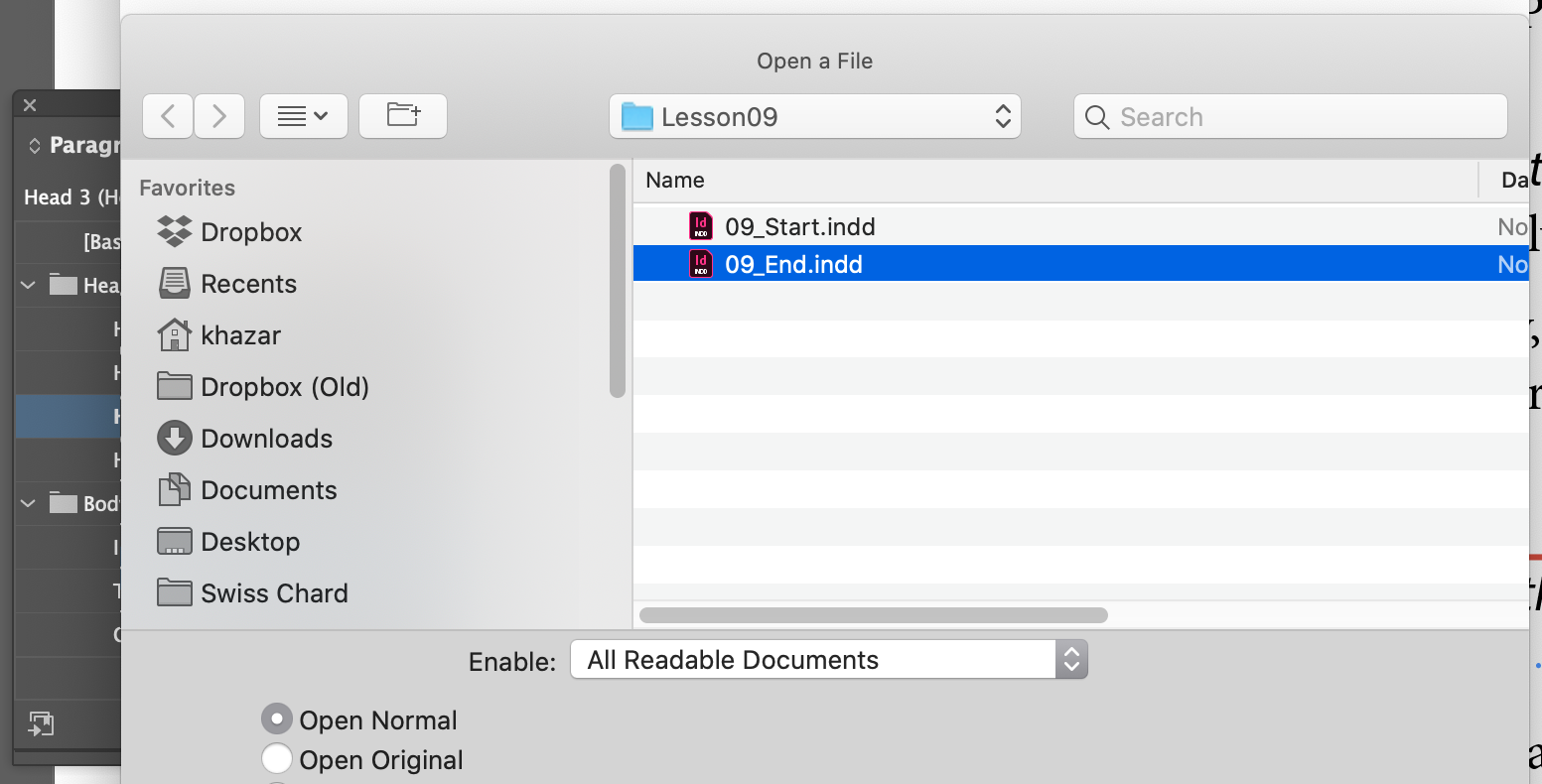
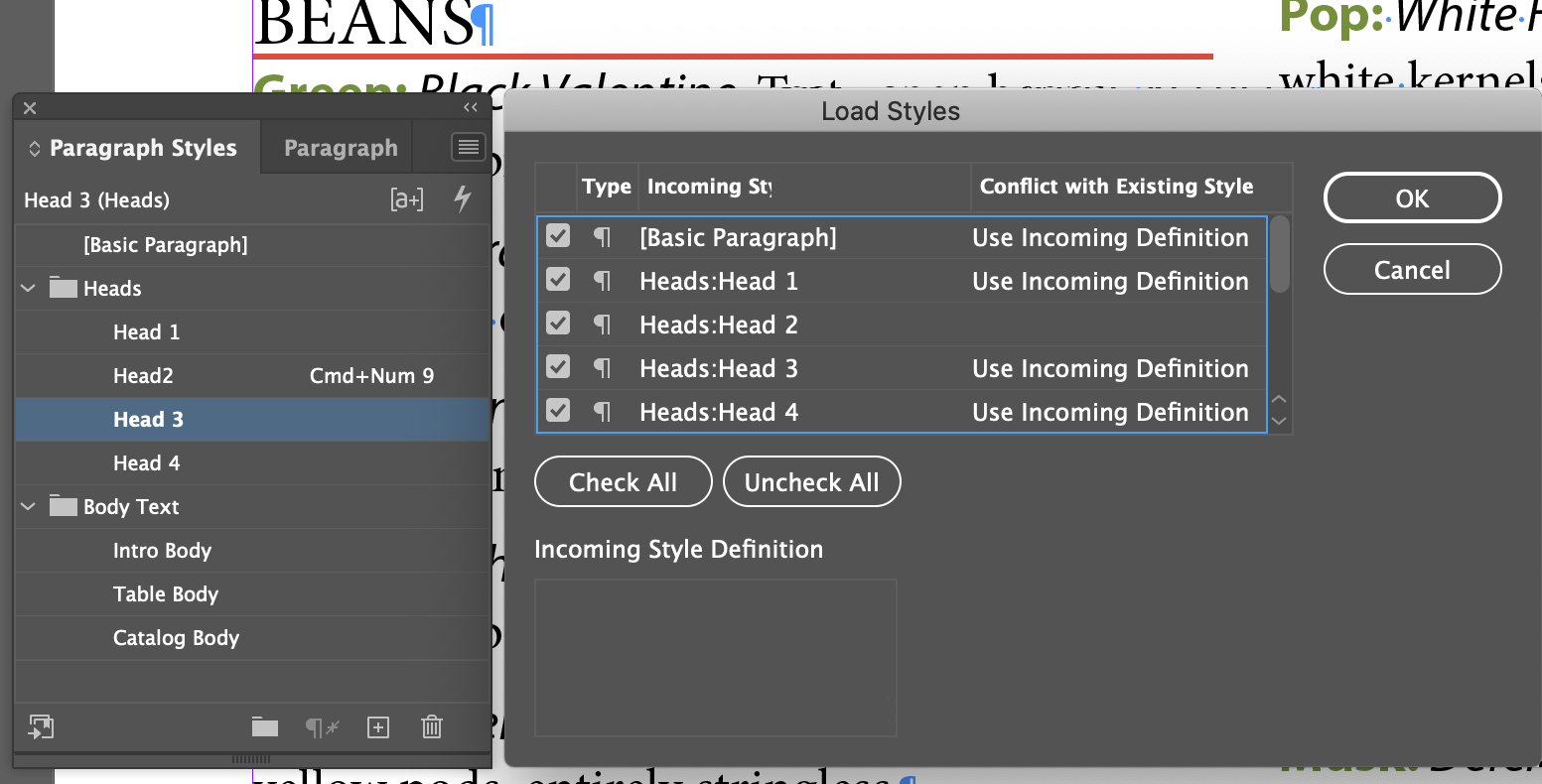
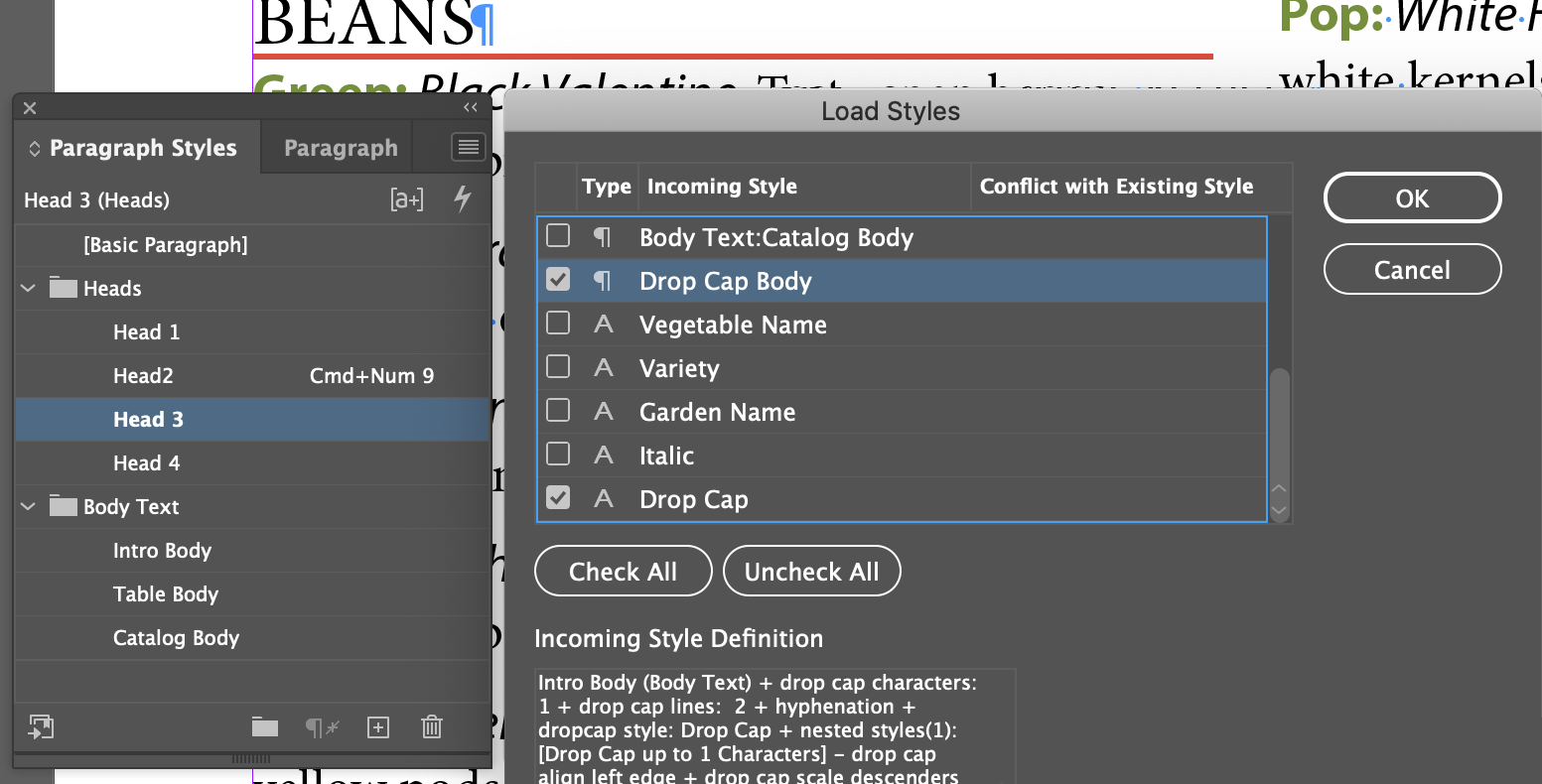
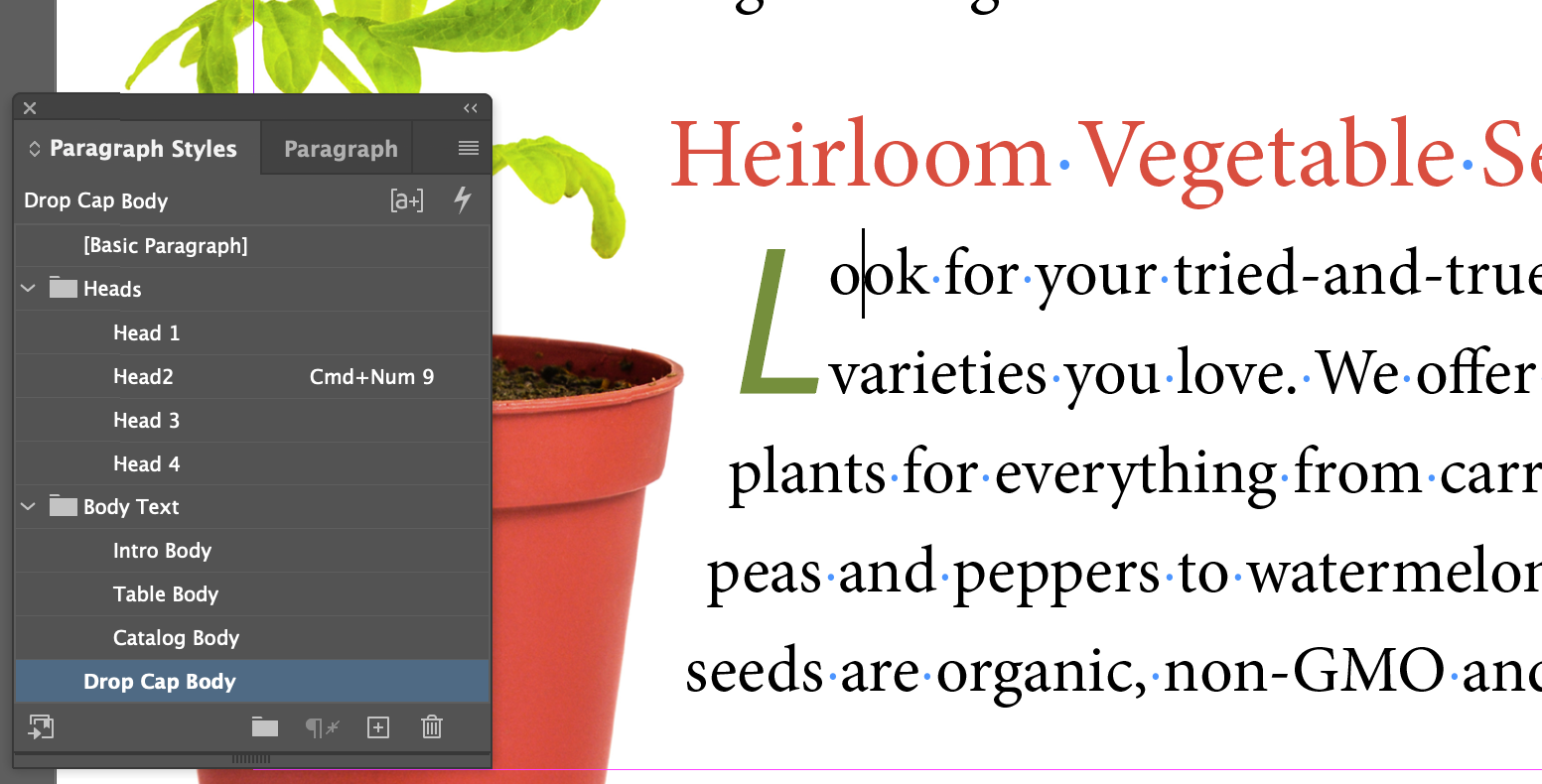
Loading Styles From Another Document

You can load styles from another document, and even select which styles you load, without actually openingthe other document.

Review Questions

  1. How can using object styles speed up your workflow?
  2. What must you have created previously in order to create a nested style?
  3. What are the two ways to globally update a style you’ve applied in an InDesign document?
  4. How would you import styles from another InDesign document?